
Welcome to Tradetrove Digital Limited. In this post, you will learn how to register for Tradetrove. Head over to tradetrove.vbarter.com to begin or click the button below.
1. Visit tradetrove.vbarter.com
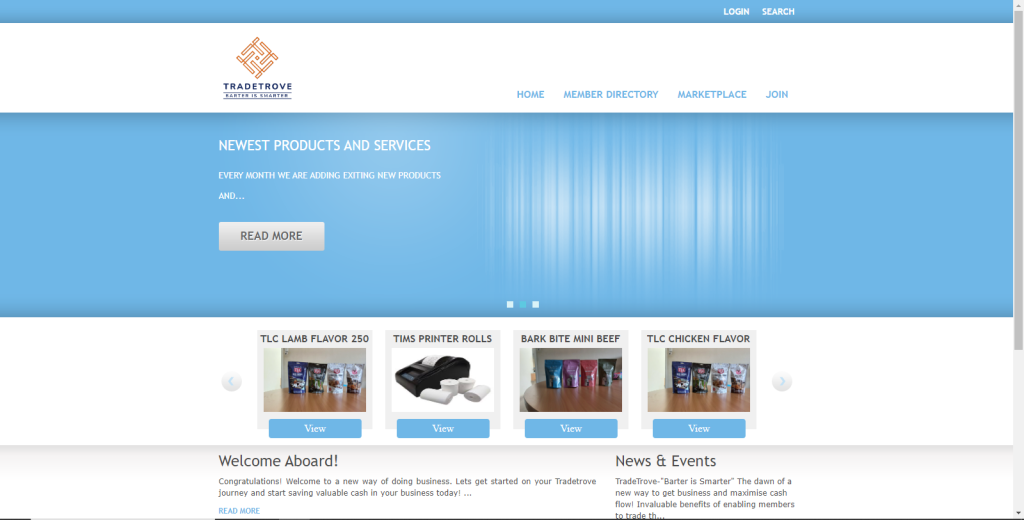
Head over to the link above. Once your page loads successfully, you should see a page resembling the image below.
2. Click the JOIN button
Click the JOIN button. It should be the last item on the navigation bar. I have highlited the button for visibility.
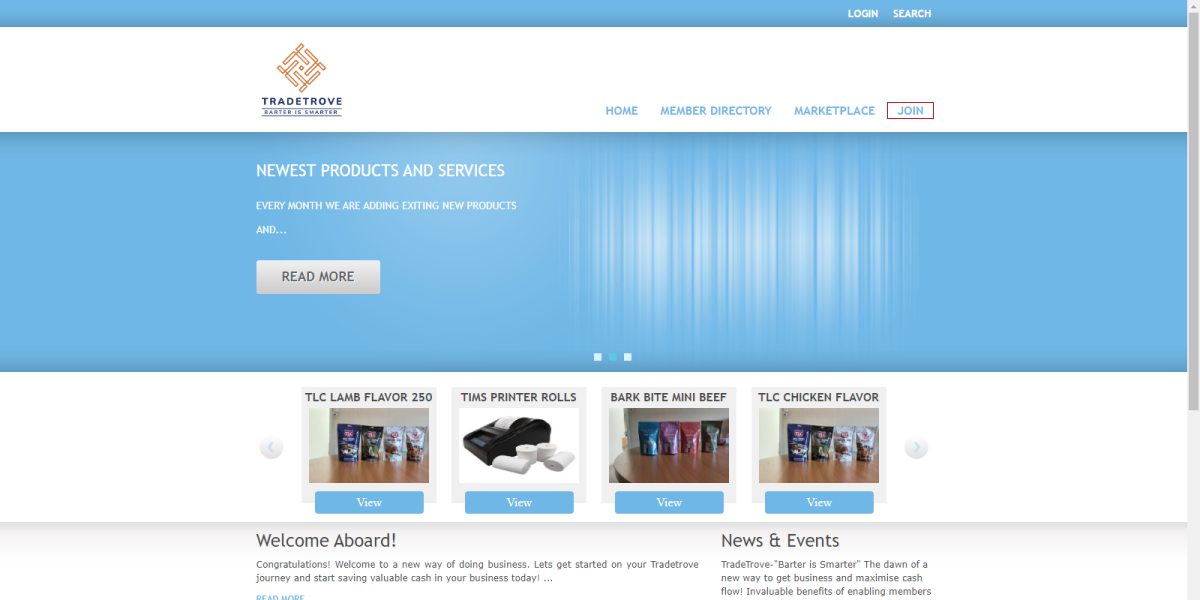
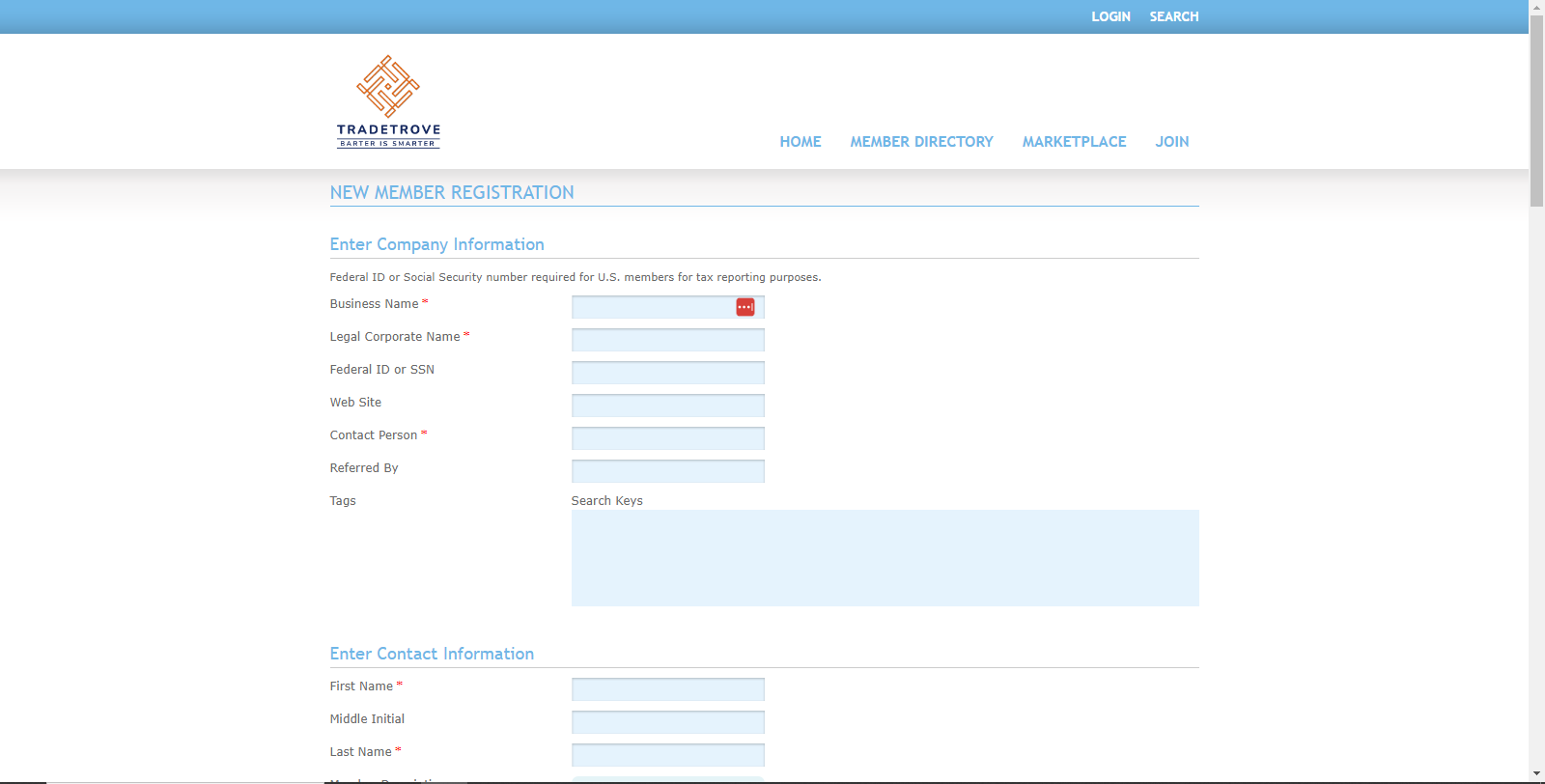
Once clicked you will be directed to the JOIN page at https://www.vbarter.com/join.html. As shown below.
3. Fill in fields as required
Fill in the form with the required information. Any field marked with a red asterisk(*) is a mandatory field. The other fields are optional and can be left blank. Don’t worry I’ll walk you through all the form sections to ensure they are filled with the correct information.
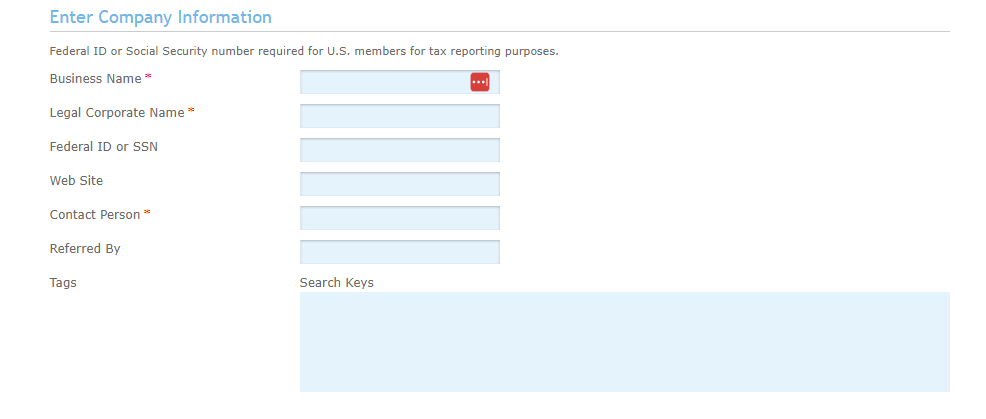
Enter Company Information
Here you will fill in information regarding your company.
- Business name. This is the name that will appear on the exchange.
- Legal Corporate Name. This is the legal name you used when registering your business.
- Federal ID or SSN (optional). Here you should enter your business registration number. This field is optional and can be left blank.
- Web Site (optional). Here you should enter your website address. This will help other businesses find you even outside Tradetrove Digital Limited. This field is optional and can be left blank.
- Contact person. Here you should enter a phone number in the format 07xx xxx xxx for the person managing your page. This will be used to contact your business in case of any issues.
- Referred By (optional). Here you should enter the full name of the person or business who referred you to Tradetrove.
- Tags (optional). Here you should enter a list of comma-separated tags i.e For an automotive company that deals with spare parts you may enter parts, spare parts, repairs etc
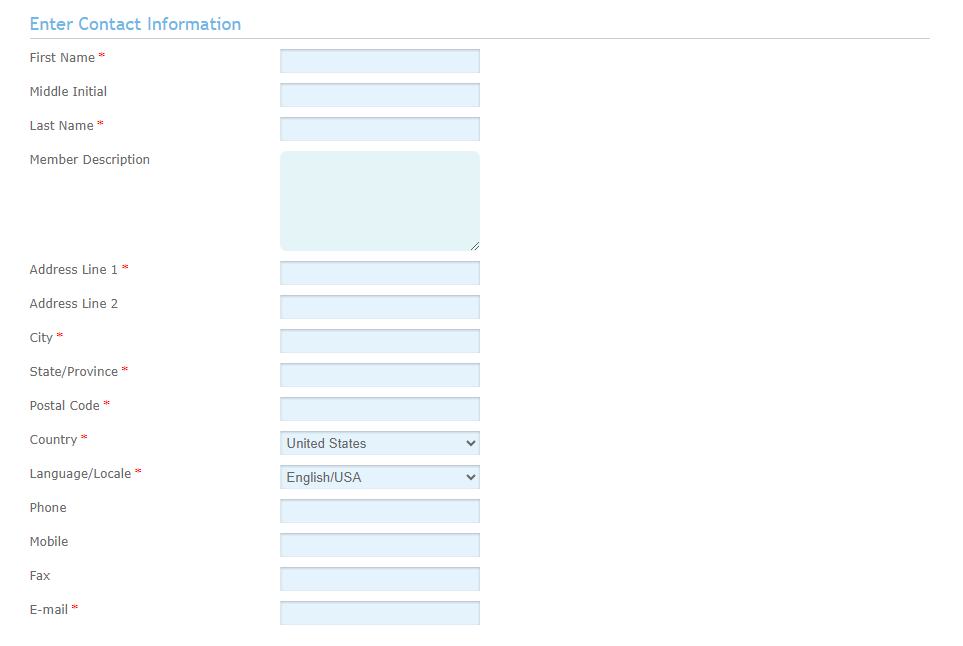
Enter Contact Information
Here you will fill in your contact information.
- First Name. Here you should enter your first name.
- Middle Initial (optional). Here you should enter the initial for your middle name. This field only takes one uppercase character.
- Last Name. Here you should enter your last name.
- Member Description (optional). Here you should enter a description on your company and what it does. This will be used to help members identify what goods or services you offer. This is an optional field and can be left blank.
- Address Line 1. Here you should enter your physical location. e.g Westland, Old Waiyaki Way. This field is required and cannot be left blank.
- Address Line 2 (optional). This is an additional field to enter your physical location. You should enter additional information about your location. Here you can enter information such as the building name, floor, and other specific location details. This field is optional and can remain blank.
- City. Here you should enter the city with your business is located. This is a required field an cannot be left blank.
- State/Province. Here you should enter the province where your business is located. This is a required field and cannot be left blank.
- Country. Here you should enter the country where your business is located. This field is required and cannot be left blank.
- Language/Locale. Here you should enter the language you use. This will convert the application to use that language on your account. This field is set to English/USA by default. This is a required field and cannot be left blank.
- Phone (optional). Here you should enter your business phone number. This information will be available for member to contact your business. This field is optional and can be left blank.
- Mobile (optional). Here you should enter your business mobile number. This information will be available for member to contact your business. This field is optional and can be left blank.
- Fax (optional). Here you should enter your business fax number. This information will be available for member to contact your business. This field is optional and can be left blank.
- Email. Here you should enter your business email address. This information will be available for member to contact your business. This is a required field and cannot be left blank.
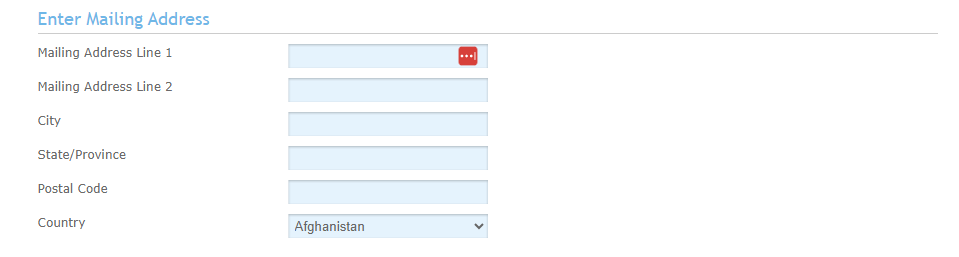
Enter Mailing Information
Here you will fill in your mailing information.
- Mailing Address Line 1 (optional). Here you should enter your mailing address. This field is optional and can be left blank.
- Mailing Address (optional). Here you should enter any additional information about your mailing address. This field is optional and can be left blank.
- City (optional). Here you should enter the city where your mailing address is located. This field is optonal and can be left blank.
- State/Province (optional). Here you should enter the state/province where your mailing address is located. This field is optonal and can be left blank.
- Country (optional). Here you should enter the country where your mailing address is located. This field is optonal and can be left blank.
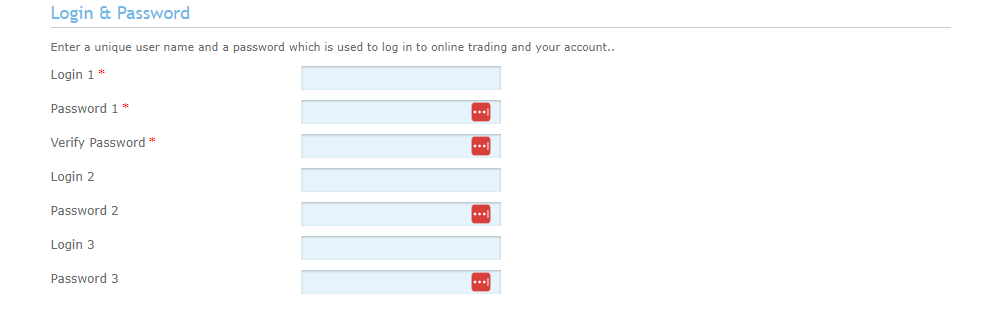
Login & Password
Here you will fill in information that will be used to login and secure your account.
- Login 1. Here you should enter an email address that you will use to login. This field is required and cannot be left blank.
- Password 1. Here you should enter a password to secure your account. A valid password should be no less than 8 characters long and use a mixture of uppercase, lowercase, numbers and symbols. This field is required and cannot be left blank.
- Verify Password. Here you should enter that same password your entered in the Password 1 field. It is used to ensure that you haven’t made any keying errors when typing your password. The content of this field should match the content of Password 1. This field is required and cannot be left blank.
- Login 2 (optional). Here you can enter a separate email for login. This email should not be similar to the email entered in Login 1. This field is optional and can be left blank.
- Password 2 (optional). Here you can enter a password for the email entered in the login 2 field. This field is optional and can be left blank.
- Login 3 (optional). Here you can enter a separate email for login. This email should not be similar to the email entered in Login 1 or Login 2. This field is optional and can be left blank.
- Password 3 (optional). Here you can enter a password for the email entered in the login 3 field. This field is optional and can be left blank.
Trade Card Details
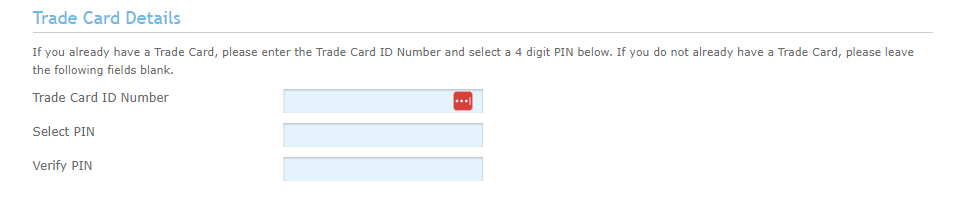
Here you will fill in information regarding your Trade Card. Tradetrove has not issued any trade cards yet. These fields will therefore be left blank.
- Trade Card ID Number (optional). Here you should enter your trade card ID Number. This field is optional and can be left blank.
- Select PIN (optional). Here you should enter a pin for your trade card. This field is optional and can be left blank.
- Verify PIN (optional). Here you should enter that same pin your entered in the Select PIN field. This field is optional and can be left blank.
Trade Card Details
Here you will fill in information regarding your Trade Card. Tradetrove has not issued any trade cards yet. These fields will therefore be left blank.
- Trade Card ID Number (optional). Here you should enter your trade card ID Number. This field is optional and can be left blank.
- Select PIN (optional). Here you should enter a pin for your trade card. This field is optional and can be left blank.
- Verify PIN (optional). Here you should enter that same pin your entered in the Select PIN field. This field is optional and can be left blank.
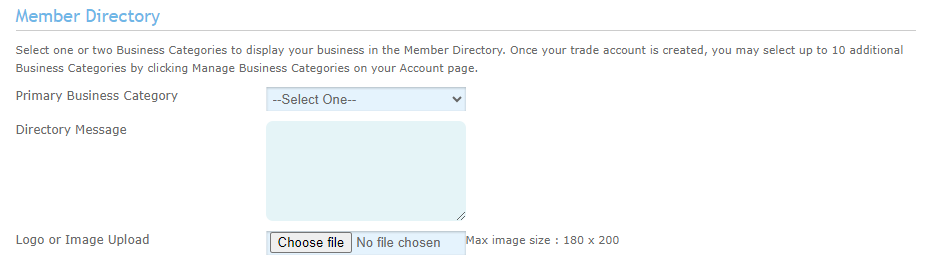
Member Directory
Here you will fill in information regarding your business category and how your business will appear on the marketplace.
- Primary Business Category. Here you should pick a business category that fits your organization’s services. You should pick at least one business category. This is the category where your business will appear under in the marketplace.
- Directory Message (optional). Here you should enter a message describing your business and the goods and services you provide. This message will be displayed when a member accesses your business in the marketplace. This field is optional and can be left blank.
- Logo or Image Upload (optional). Here you should select an image or logo for your business. This field is optional and can be left blank.
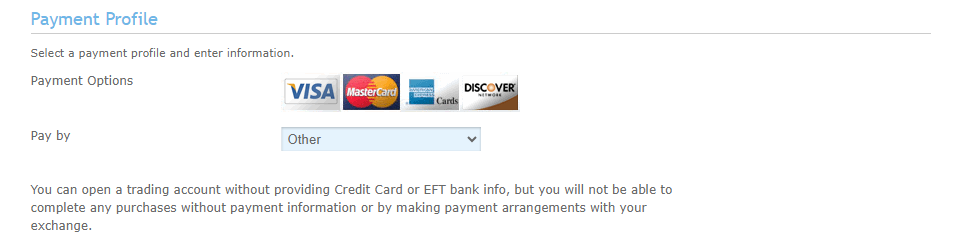
Payment Profile
Here you will fill in your payment information. This information will be used to debit tradetrove fees. Tradetrove has not enabled Credit Card or ETF payments. Here you should select Other.
- Payment Options (optional). Here you should pick a payment card provider. This field is optional and can be left blank.
- Pay by. Here you should select a payment option. The options available are Credit Card, EFT and Other. You should only select Other since Trade Trove does not support the other payment options.
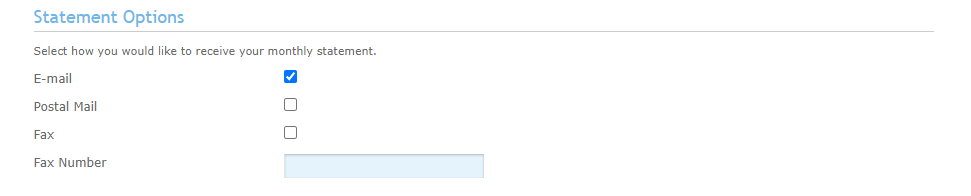
Statement Options
Here you will select how you would like to receive your monthly statement. The options availabe are Email, Postal mail and Fax.
Trading Rules
This is an acknowledgment that you have read and agreed to Tradetrove Digital Limited’s trading rules and terms and conditions. You find these at the footer of every page. Once you have read the terms and are in agreement, check the I agree checkbox as well as the `I have read and agree to the transaction fees and trading rules` then click the JOIN NOW button.

4. What to do next
Once you click the JOIN NOW button, your application will be sent to Tradetrove for approval. We will review your application and if everything is in order we will approve your application. You should then receive an email from us with your login credentials. You can then login to Tradetrove Digital Limited and begin adding your goods and services.