
Welcome to Tradetrove Digital Limited. In this post, you will learn how to add an item or service. Head over to tradetrove.vbarter.com to begin or click the button below.
1. Visit tradetrove.vbarter.com
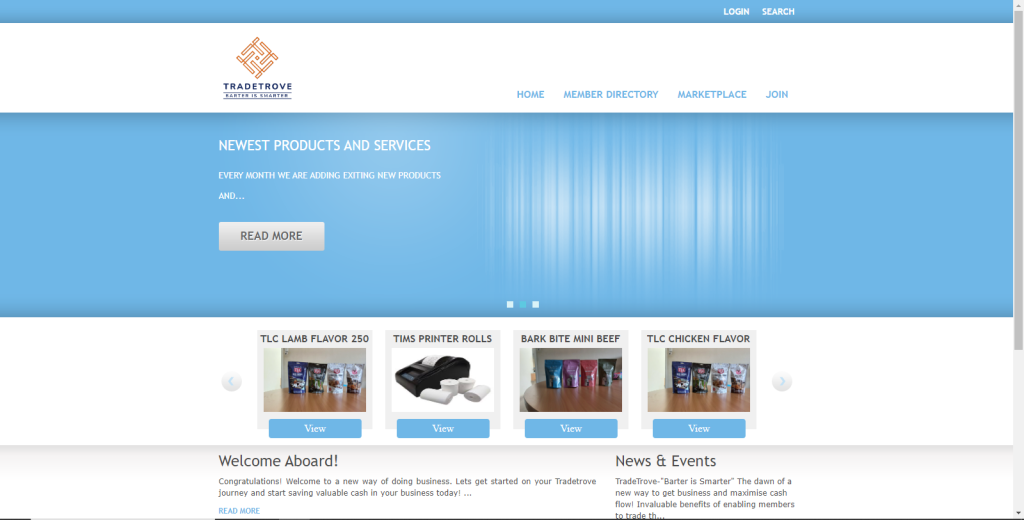
Head over to the link above. Once your page loads successfully, you should see a page resembling the image below.
2. Login
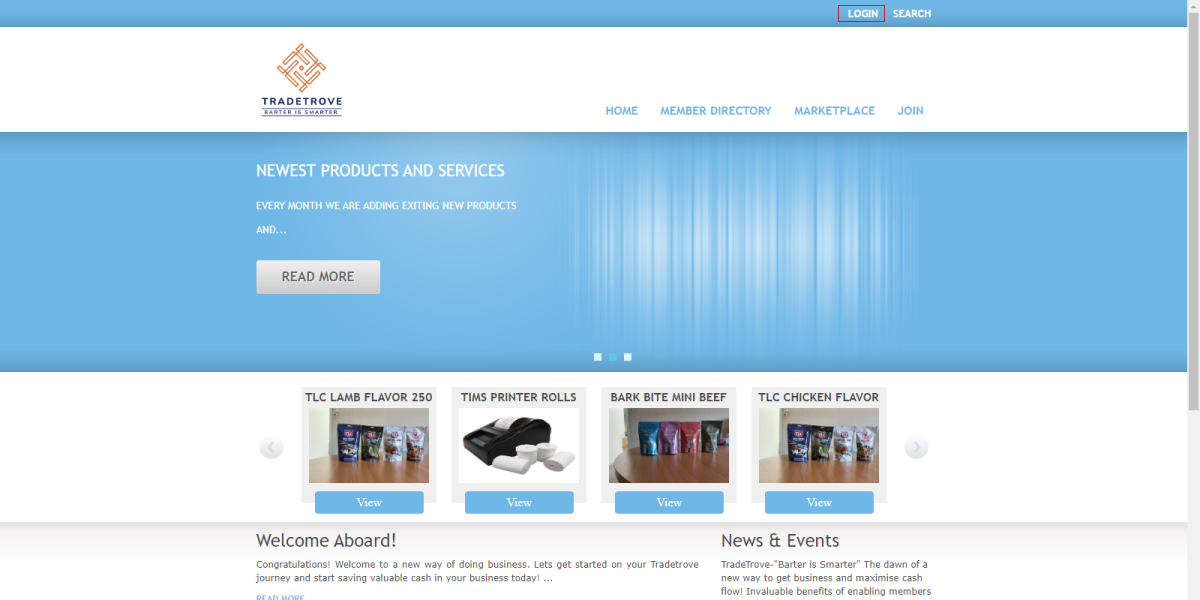
Click the login button. If you need any help logging in you can read this blog post.
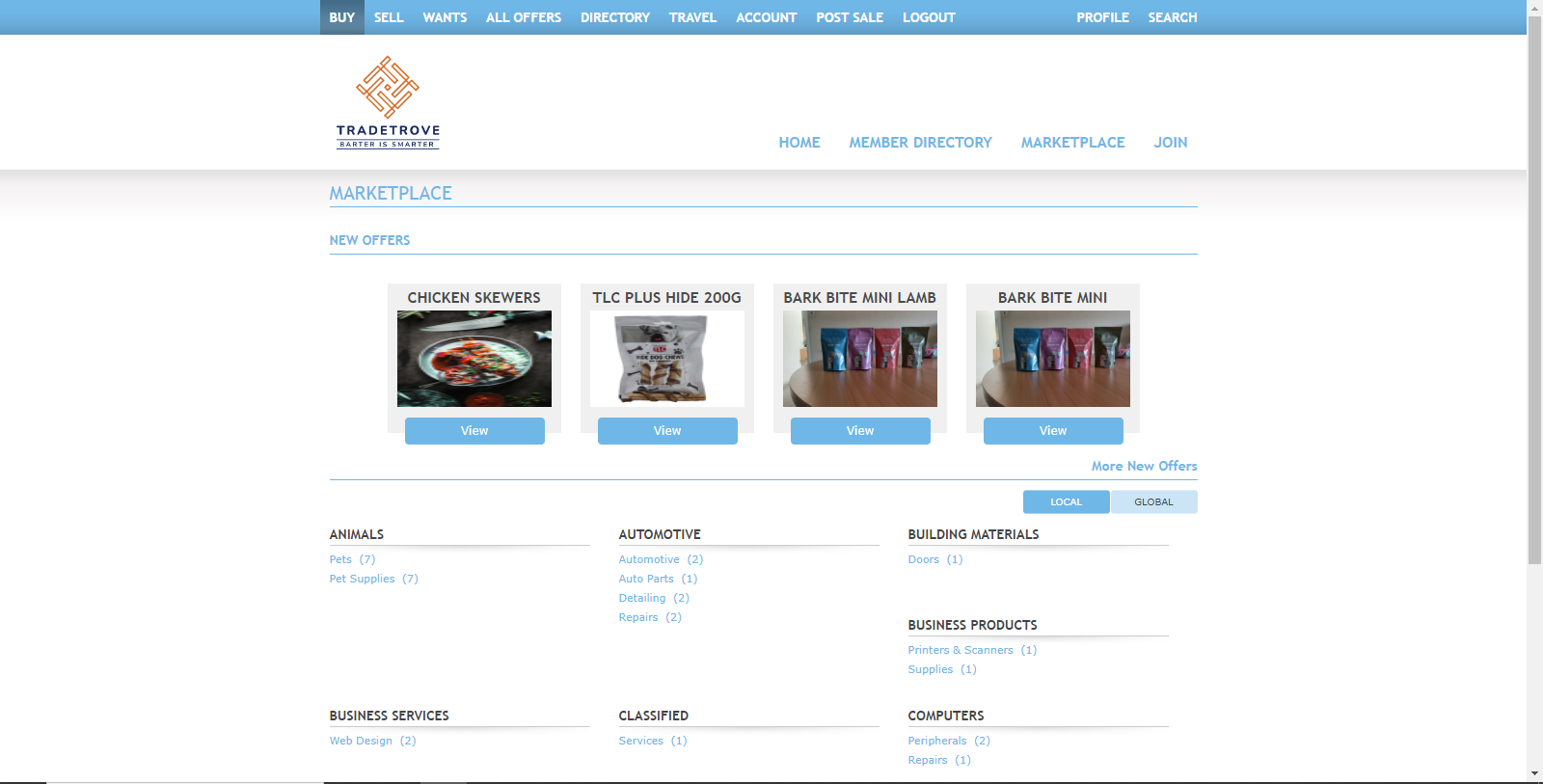
Once logged in you will be redirected to the market place as shown below.
3. Navigate to the SELL page
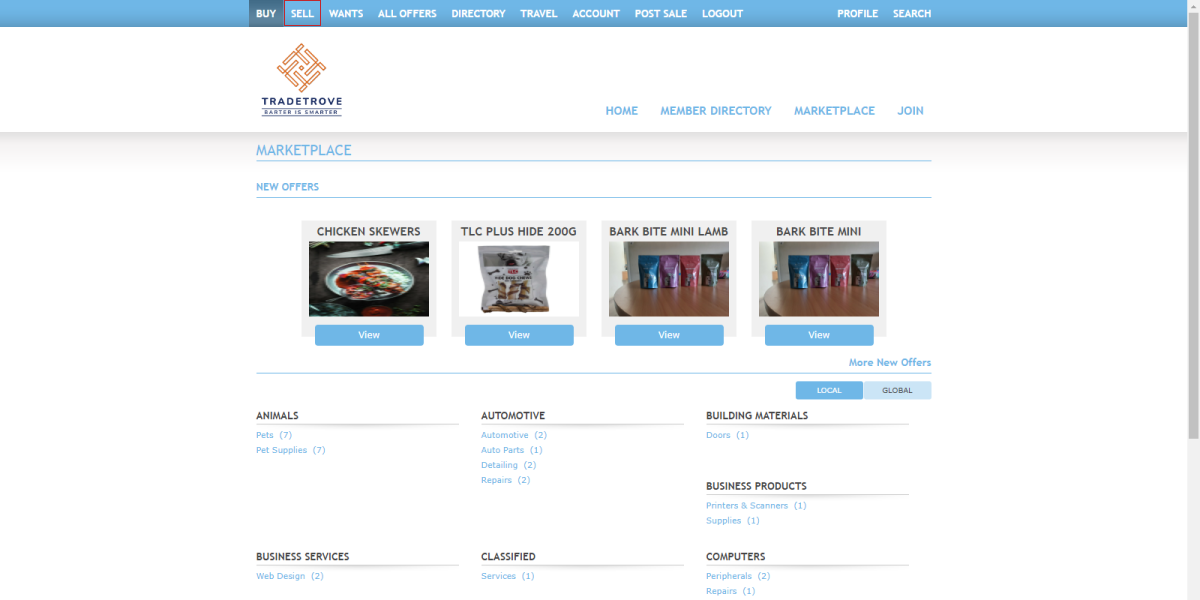
Click on the SELL button. It should be the second item on the navigation bar at the top of the page. I’ve highlighted the button for easy visibility.
4. The SELL page breakdown
Here you can add various items or services you would like to offer for barter. The options available are:
- Add Item. Here you can add any item or service.
- Add Travel. Add a travel destination you want to put up for sale. e.g. tours, and hotels.
- Add Media. Add any media services from printing to videography.
- Add Inventory. Add any excess inventory item you might want to put up for sale.
- Add Real Estate. Add an offer to sell homes, buildings or properties that require real estate-specific data fields.
- Add Restaurant. dd a restaurant. You can sell your reservations here.
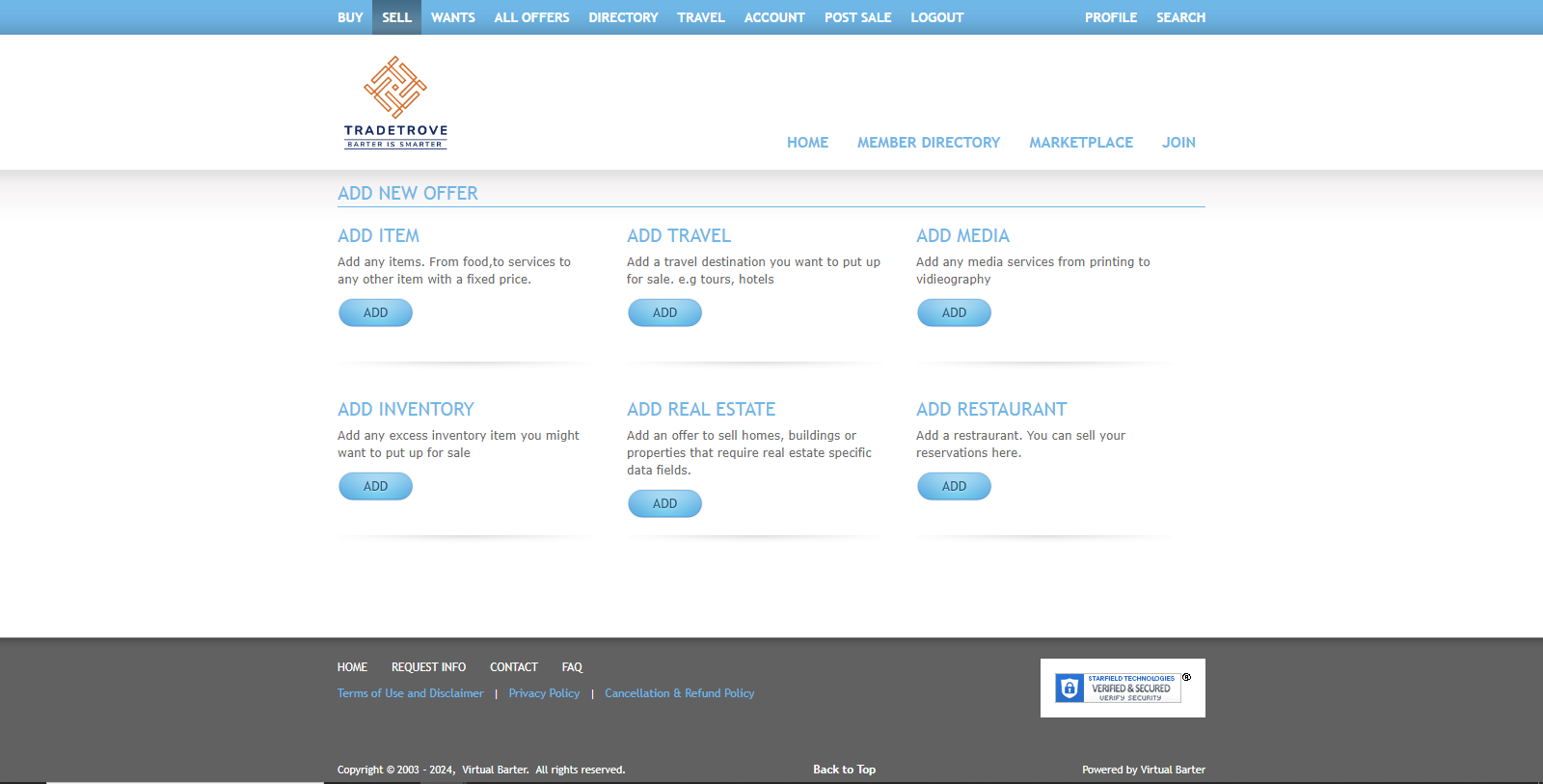
Now that you’re more acquainted with the SELL page, I’ll explain each option available:
Add Item
Clicking on the Add Item button opens the Add Items page where you can add items or services as shown below. Any field that is marked with a red asterisk(*) is required and cannot be left blank.
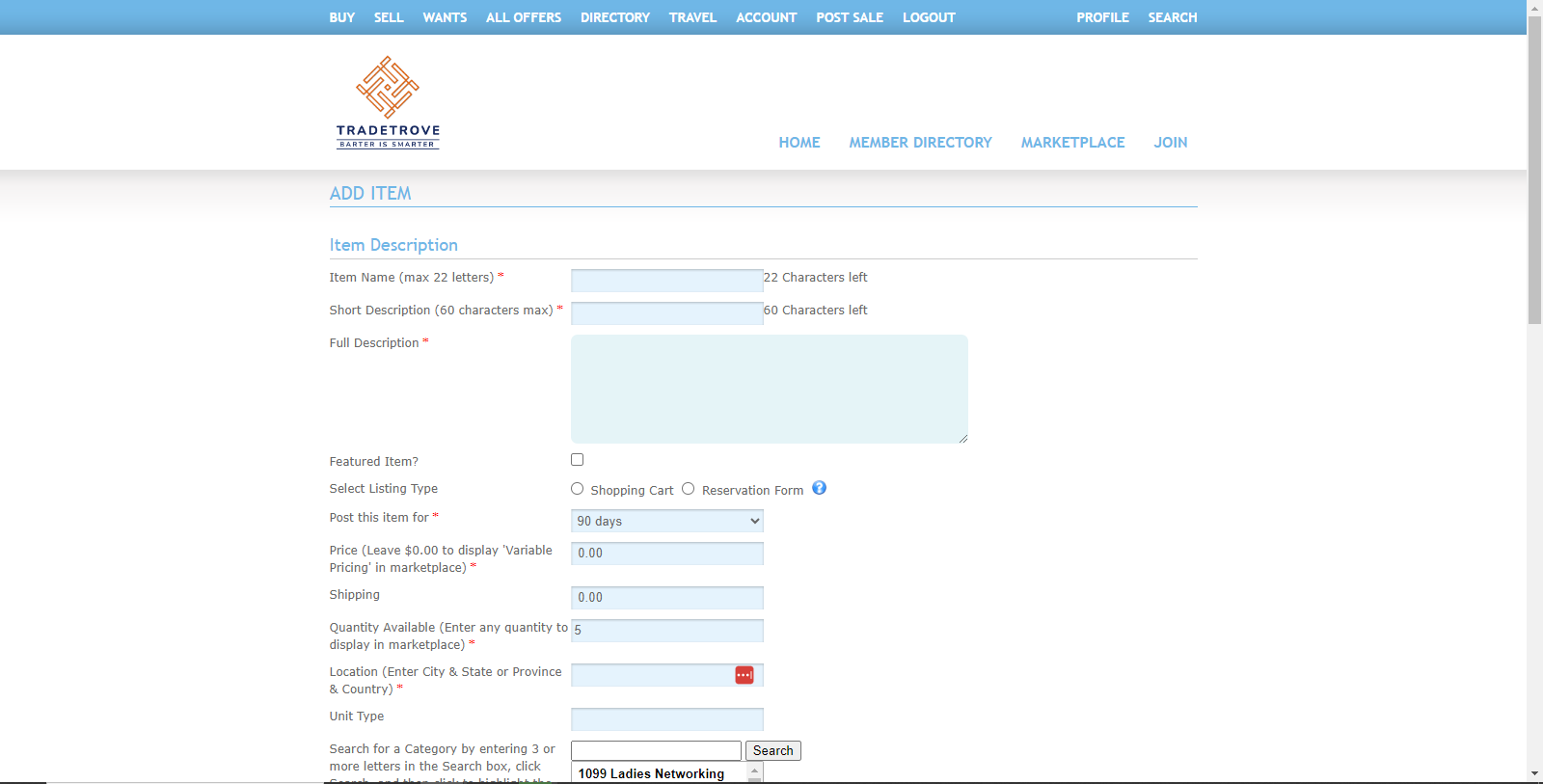
Item Description
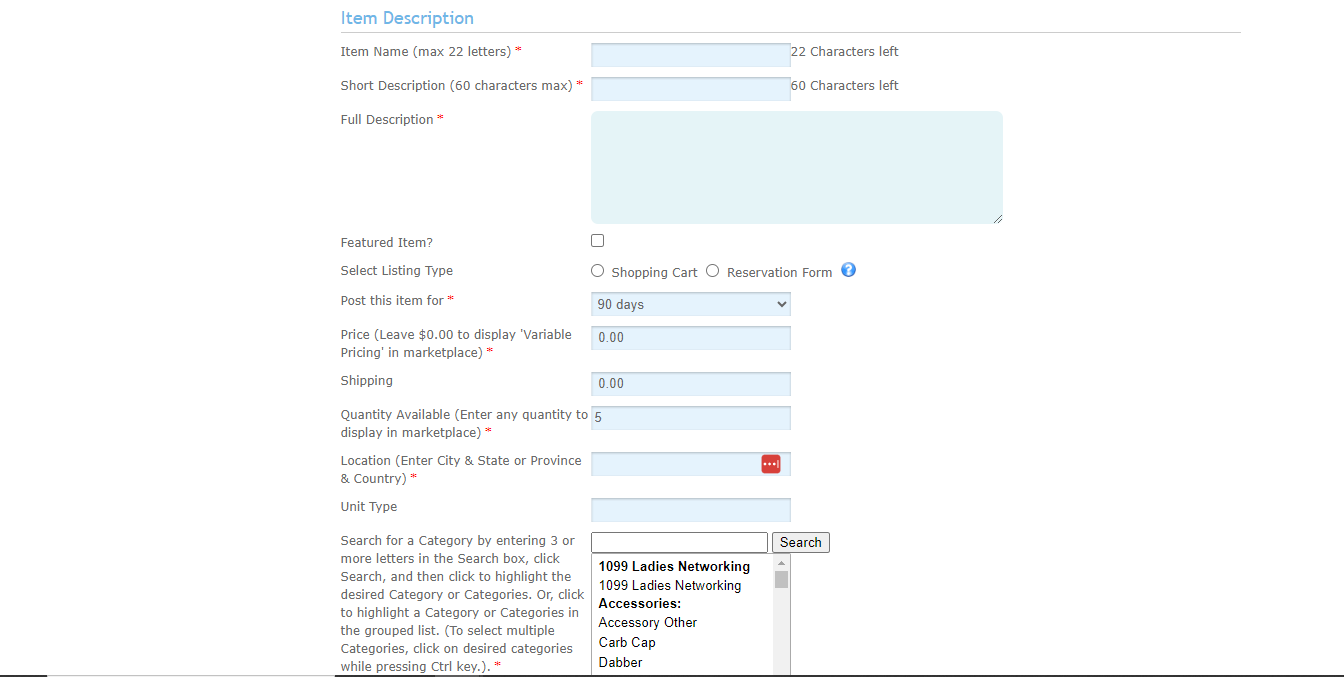
In this section, you should enter information regarding the item or service you are adding.
- Item name. Add a name for your item. This field is required and cannot be left blank.
- Short Description. Here you should enter a short 60-character summary of what your item is. This field is required and cannot be left blank.
- Full Description. Here you can enter a full description of your item or service. This field is required and cannot be left blank.
- Featured Item (optional). This is a checkbox that if checked will feature your item on Tradetrove’s homepage. Please note that Tradetrove Administrators can change this field and your item might not appear on the featured list. This field is optional and can remain blank.
- Select listing type. Select a listing type for your item or service. The options are:
- Shopping Cart – This is the default option. This is used for listing items or services with specific prices that don’t require reservations.
- Reservation Form – Use this option when you need to list items or services that require reservations.
- Post this item for. Here you should select the duration for which the item will remain listed on the platform. The item will be listed for 90 days by Default. This field is required and cannot be left blank.
- Price (Leave $0.00 to display ‘Variable Pricing’ in marketplace). Here you should enter a price for your item or service. The price entered will be in Kenyan Shillings(Ksh). If your item or service has no fixed price, leave it to 0 for Variable Pricing. Any item that is set to Variable Pricing will not be processed immediately. It will instead need to be approved by the seller before it’s completed. Click on this link for more information on variable pricing.
- Shipping (optional). Here you should fill in any shipping costs for the item. This field is optional and can be left blank.
- Quantity Available. Here you should enter the quantity of the item or service available for trade. This field is required and cannot be left blank.
- Location. Here you should enter your business location. This field is required and cannot be left blank.
- Unit Type (optional). Here you should enter a unit type for your good or service. e.g you can enter 10kg bags if 1 unit is equivalent to 1 10 kg bag. If left empty no units will be included in the price. This field is optional and can be left blank.
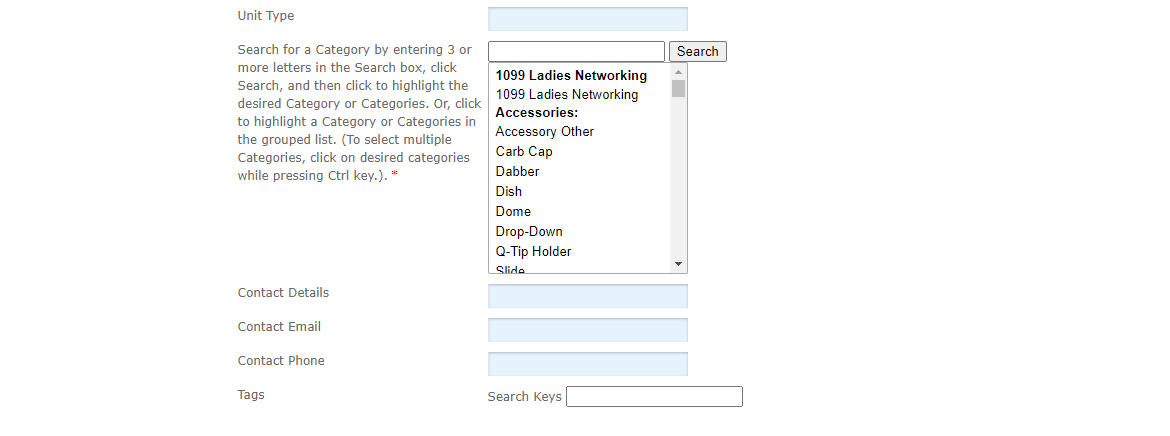
- Search for a Category. Here you can classify your item or service into a category. This will enable members to quickly search for your item or service by looking for specific categories. This field is required and cannot be left blank.
- Contact Details (optional). Add any contact details for your business. This field is optional and can be left blank.
- Contact Email (optional). Add a contact email for your business. This field is optional and can be left blank.
- Contact Phone (optional). Add a contact phone number for your business. This field is optional and can be left blank.
- Tags (optional). Add tags to enable other members to easily search for your items. This field is optional and can be left blank.
Search Location
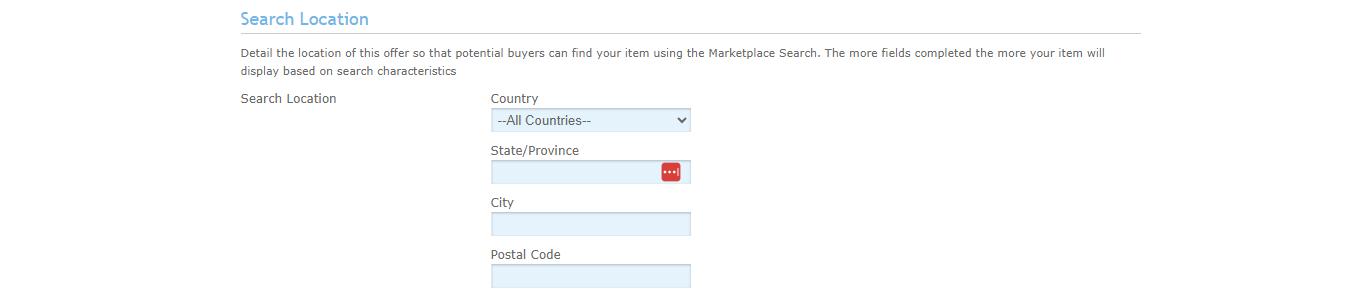
In this section, you should detail the location of this offer so that potential buyers can find your item using the Marketplace Search. The more fields completed the more your item will display based on search characteristics
- Country (optional). Enter the country where your business is located. This field is optional and can be left blank.
- State/Province (optional). Enter the province where your business is located. This field is optional and can be left blank.
- City (optional). Enter the city where your business is located. This field is optional and can be left blank.
- Postal code (optional). Enter the postal code where your business is located. This field is optional and can be left blank.
Item Images
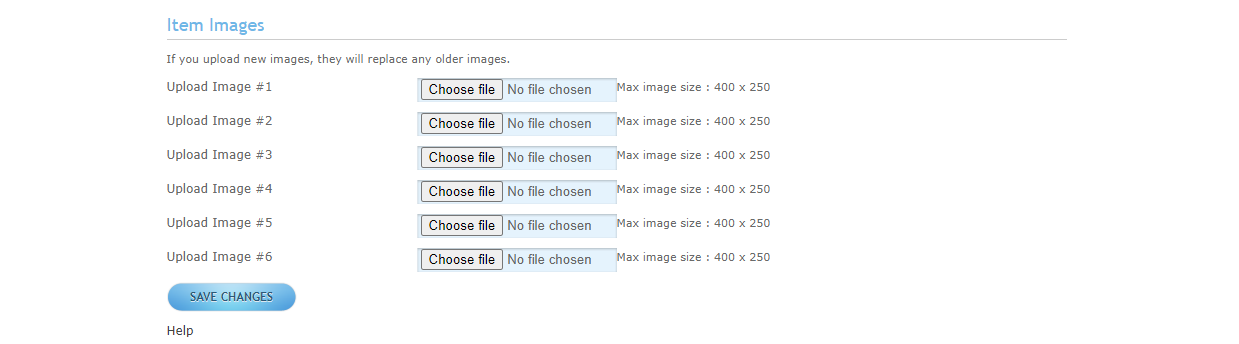
In this section, you can upload images of your items or services. This field is optional but you should add at least one image to help members identify your items and services. You can upload up to 6 images per item.
Save changes
Once you have filled in all the sections you can click on Save Changes to send your item for approval. Once approved your item will be listed for purchase.
Add Travel
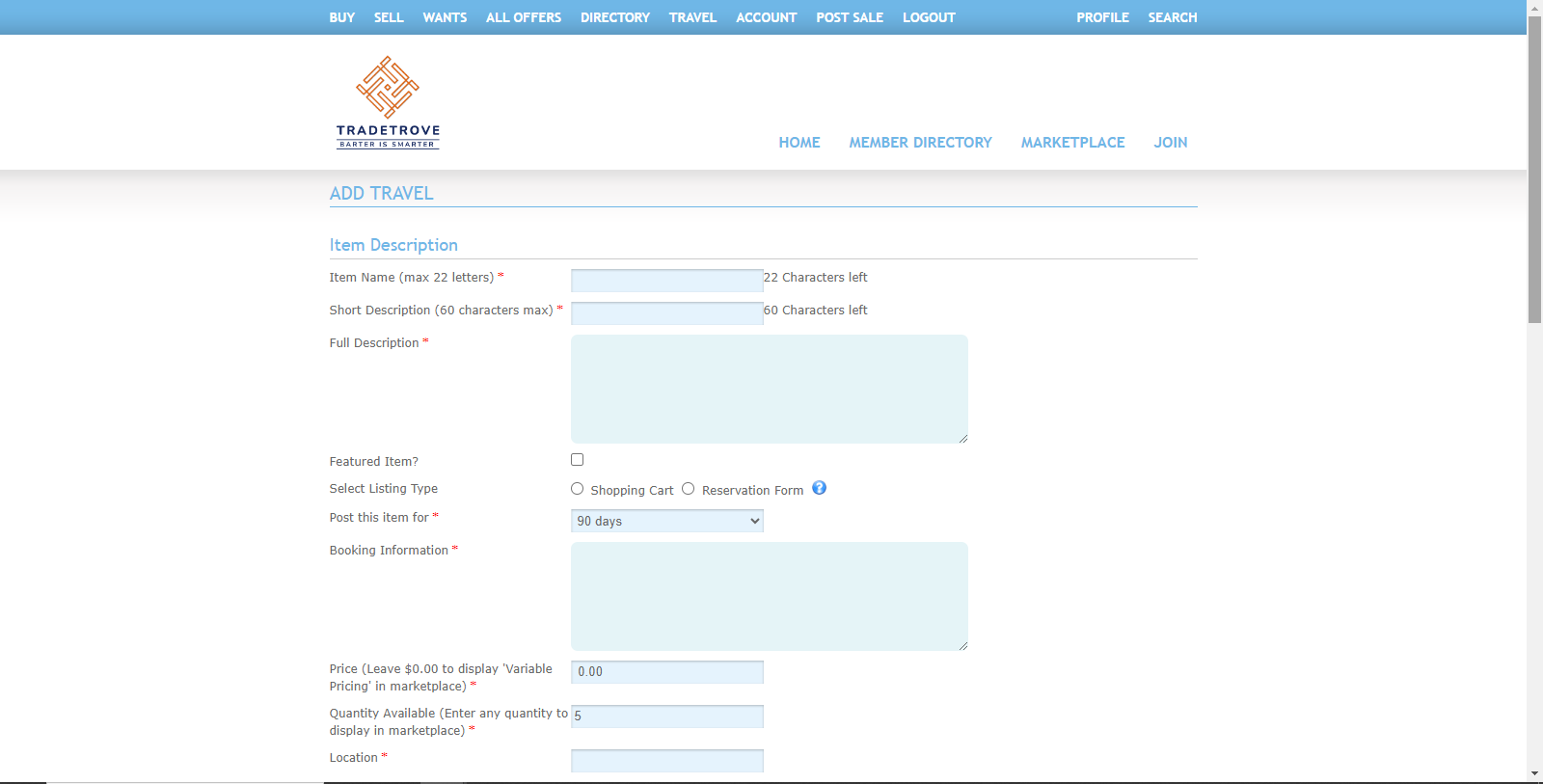
Clicking on the Add Travel button opens the Add Travel page where you can add a travel destination you want to put up for sale. e.g. tours, hotels as shown below. Any field marked with a red asterisk(*) is required and cannot be left blank.
Item Description
In this section, you should enter information regarding the travel service you add.
- Item name. Add a name for your item. This field is required and cannot be left blank.
- Short Description. Here you should enter a short 60-character summary of what your item is. This field is required and cannot be left blank.
- Full Description. Here you can enter a full description of your item or service. This field is required and cannot be left blank.
- Featured Item (optional). This is a checkbox that if checked will feature your item on Tradetrove’s homepage. Please note that Tradetrove Administrators can change this field and your item might not appear on the featured list. This field is optional and can remain blank.
- Select listing type. Select a listing type for your item or service. The options are:
- Shopping Cart – This is the default option. This is used for listing items or services with specific prices that don’t require reservations.
- Reservation Form – Use this option when you need to list items or services that require reservations.
- Post this item for. Here you should select the duration for which the item will remain listed on the platform. The item will be listed for 90 days by Default. This field is required and cannot be left blank.
- Booking Information. Here you should enter any booking information for the travel destination provided. This field is required and cannot be left blank.
- Price (Leave $0.00 to display ‘Variable Pricing’ in marketplace). Here you should enter a price for your item or service. The price entered will be in Kenyan Shillings(Ksh). If your item or service has no fixed price, leave it to 0 for Variable Pricing. Any item that is set to Variable Pricing will not be processed immediately. It will instead need to be approved by the seller before it’s completed. Click on this link for more information on variable pricing.
- Shipping (optional). Here you should fill in any shipping costs for the item. This field is optional and can be left blank.
- Quantity Available. Here you should enter the quantity of the item or service available for trade. This field is required and cannot be left blank.
- Location. Here you should enter your business location. This field is required and cannot be left blank.
- Unit Type (optional). Here you should enter a unit type for your good or service. e.g you can enter 10kg bags if 1 unit is equivalent to 1 10 kg bag. If left empty no units will be included in the price. This field is optional and can be left blank.
- Category. Here you can classify your item or service into a category. This will enable members to quickly search for your item or service by looking for specific categories. This field is required and cannot be left blank.
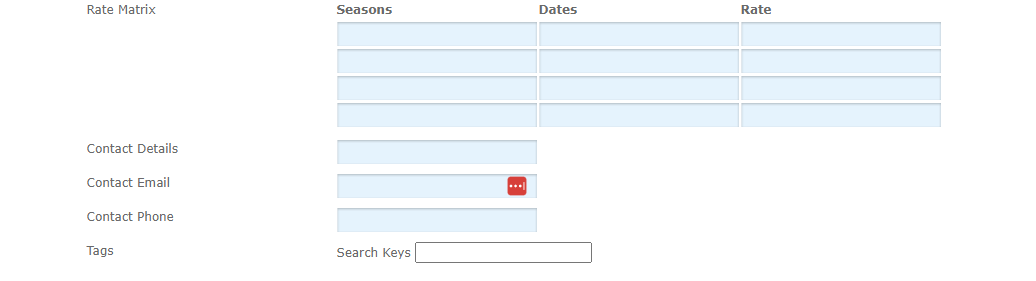
- Rate Matrix (optional). Here you can add different rates for different seasons and when the rates take effect. This field is optional and can be left blank.
- Contact Details (optional). Add any contact details for your business. This field is optional and can be left blank.
- Contact Email (optional). Add a contact email for your business. This field is optional and can be left blank.
- Contact Phone (optional). Add a contact phone number for your business. This field is optional and can be left blank.
- Tags (optional). Add tags to enable other members to easily search for your items. This field is optional and can be left blank.
Search Location
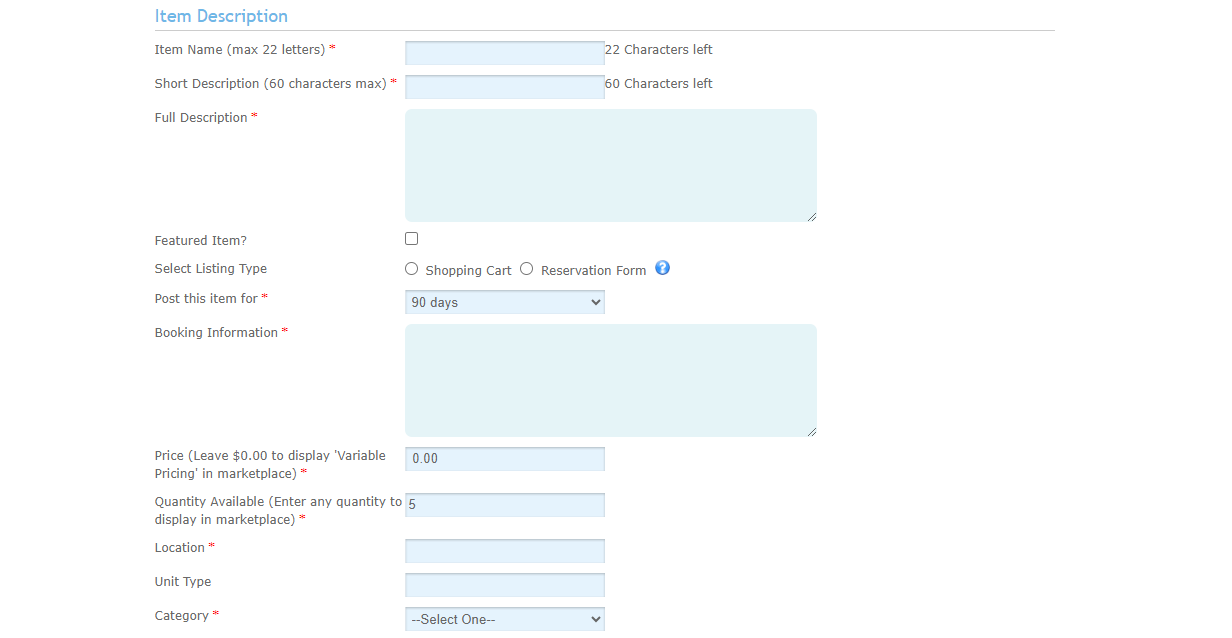
In this section, you should detail the location of this offer so that potential buyers can find your item using the Marketplace Search. The more fields completed the more your item will display based on search characteristics
- Country (optional). Enter the country where your business is located. This field is optional and can be left blank.
- State/Province (optional). Enter the province where your business is located. This field is optional and can be left blank.
- City (optional). Enter the city where your business is located. This field is optional and can be left blank.
- Postal code (optional). Enter the postal code where your business is located. This field is optional and can be left blank.
Item Images
In this section, you can upload images of your items or services. This field is optional but you should add at least one image to help members identify your items and services. You can upload up to 6 images per item.
Save changes
Once you have filled in all the sections, click Save Changes to send your item for approval. Once approved your item will be listed for purchase.
Add Media
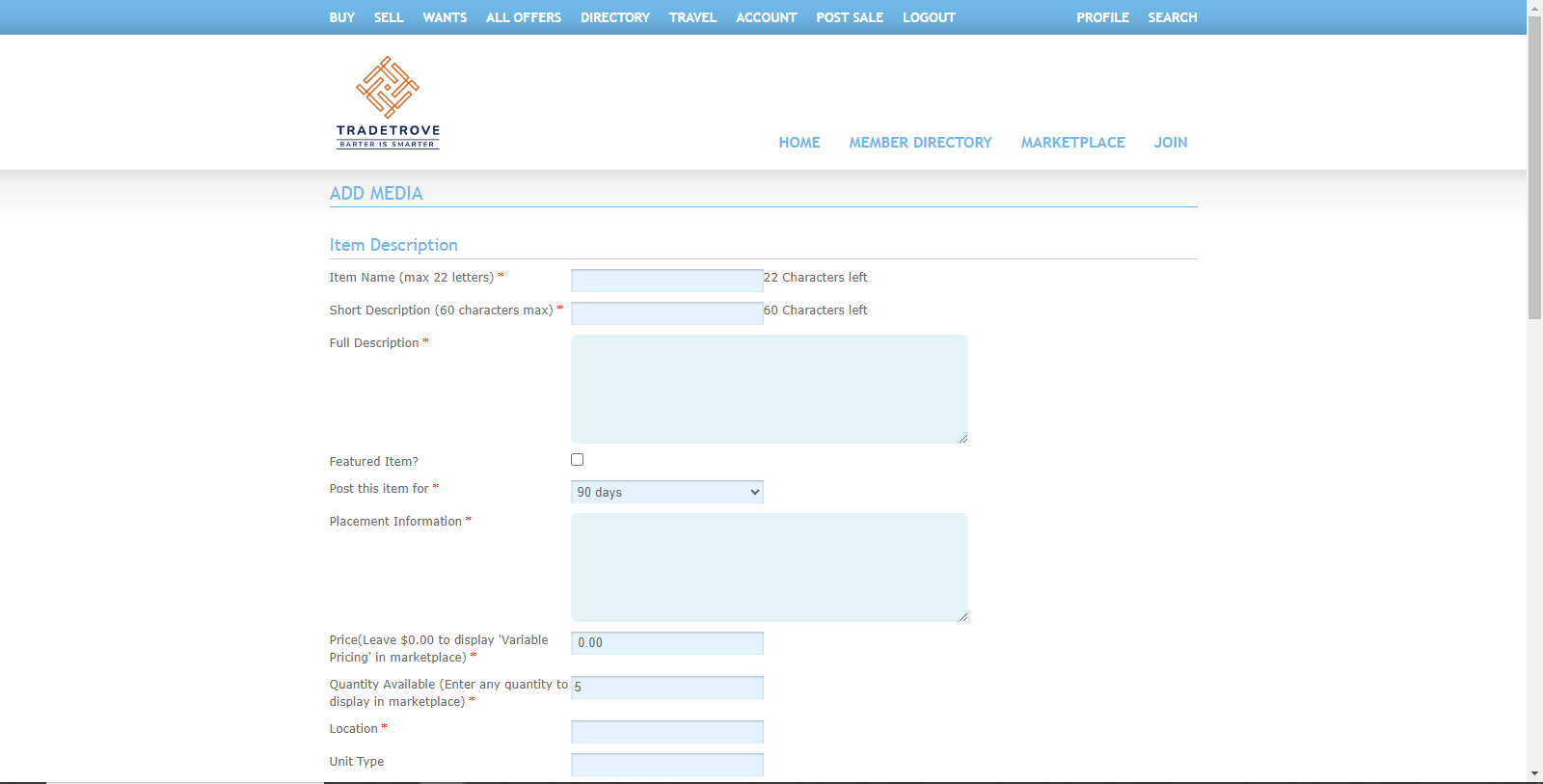
Clicking on the Add Media button opens the Add Media page where you can add any media services from printing to videography as shown below. Any field marked with a red asterisk(*) is required and cannot be left blank.
Item Description
In this section, you should enter information regarding the media service you add.
- Item name. Add a name for your item. This field is required and cannot be left blank.
- Short Description. Here you should enter a short 60-character summary of what your item is. This field is required and cannot be left blank.
- Full Description. Here you can enter a full description of your item or service. This field is required and cannot be left blank.
- Featured Item (optional). This is a checkbox that if checked will feature your item on Tradetrove’s homepage. Please note that Tradetrove Administrators can change this field and your item might not appear on the featured list. This field is optional and can remain blank.
- Post this item for. Here you should select the duration for which the item will remain listed on the platform. The item will be listed for 90 days by Default. This field is required and cannot be left blank.
- Placement Information. Here you should enter any placement information for the media service provided. This field is required and cannot be left blank.
- Price (Leave $0.00 to display ‘Variable Pricing’ in marketplace). Here you should enter a price for your item or service. The price entered will be in Kenyan Shillings(Ksh). If your item or service has no fixed price, leave it to 0 for Variable Pricing. Any item that is set to Variable Pricing will not be processed immediately. It will instead need to be approved by the seller before it’s completed. Click on this link for more information on variable pricing.
- Quantity Available. Here you should enter the quantity of the item or service available for trade. This field is required and cannot be left blank.
- Location. Here you should enter your business location. This field is required and cannot be left blank.
- Unit Type (optional). Here you should enter a unit type for your good or service. e.g you can enter 10kg bags if 1 unit is equivalent to 1 10 kg bag. If left empty no units will be included in the price. This field is optional and can be left blank.
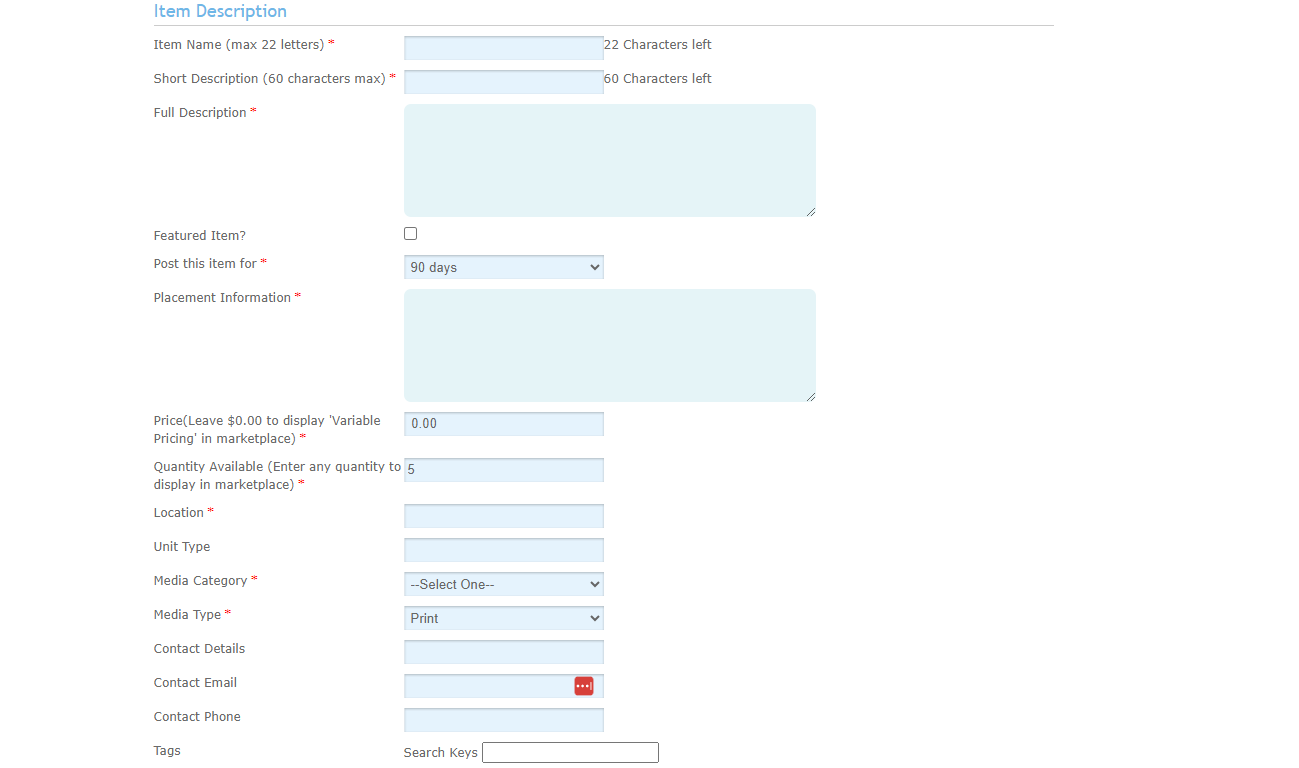
- Media Category. Here you can classify your media service into a category. This will enable members to quickly search for your service by looking for specific categories. This field is required and cannot be left blank.
- Media Type. Here you can select a media type for the media service you are offering. The options available are print and broadcast. Print is used to offer printing services while broadcast is used for any video service. This field is required and cannot be left blank.
- Contact Details (optional). Add any contact details for your business. This field is optional and can be left blank.
- Contact Email (optional). Add a contact email for your business. This field is optional and can be left blank.
- Contact Phone (optional). Add a contact phone number for your business. This field is optional and can be left blank.
- Tags (optional). Add tags to enable other members to easily search for your items. This field is optional and can be left blank.
Search Location
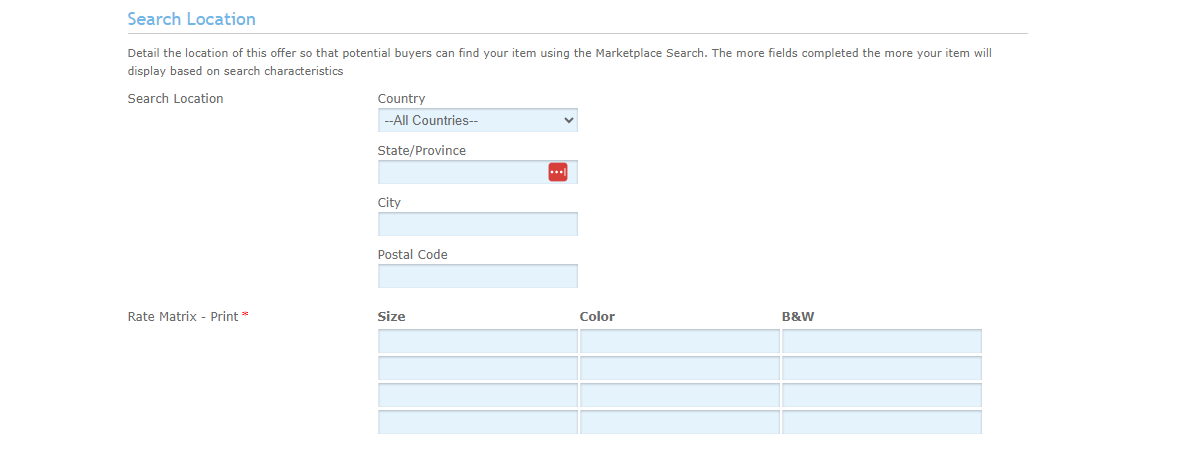
In this section, you should detail the location of this offer so that potential buyers can find your item using the Marketplace Search. The more fields completed the more your item will display based on search characteristics
- Country (optional). Enter the country where your business is located. This field is optional and can be left blank.
- State/Province (optional). Enter the province where your business is located. This field is optional and can be left blank.
- City (optional). Enter the city where your business is located. This field is optional and can be left blank.
- Postal code (optional). Enter the postal code where your business is located. This field is optional and can be left blank.
- Rate Matrix – Print. Here you can enter the size of the media service as well as different prices for color and black & white versions of the media. This field is required and cannot be left blank.
Item Images
In this section, you can upload images of your media services. This field is optional but you should add at least one image to help members identify your items and services. You can upload up to 6 images per item.
Save changes
Once you have filled in all the sections, click Save Changes to send your item for approval. Once approved your service will be listed for purchase.
Add Inventory
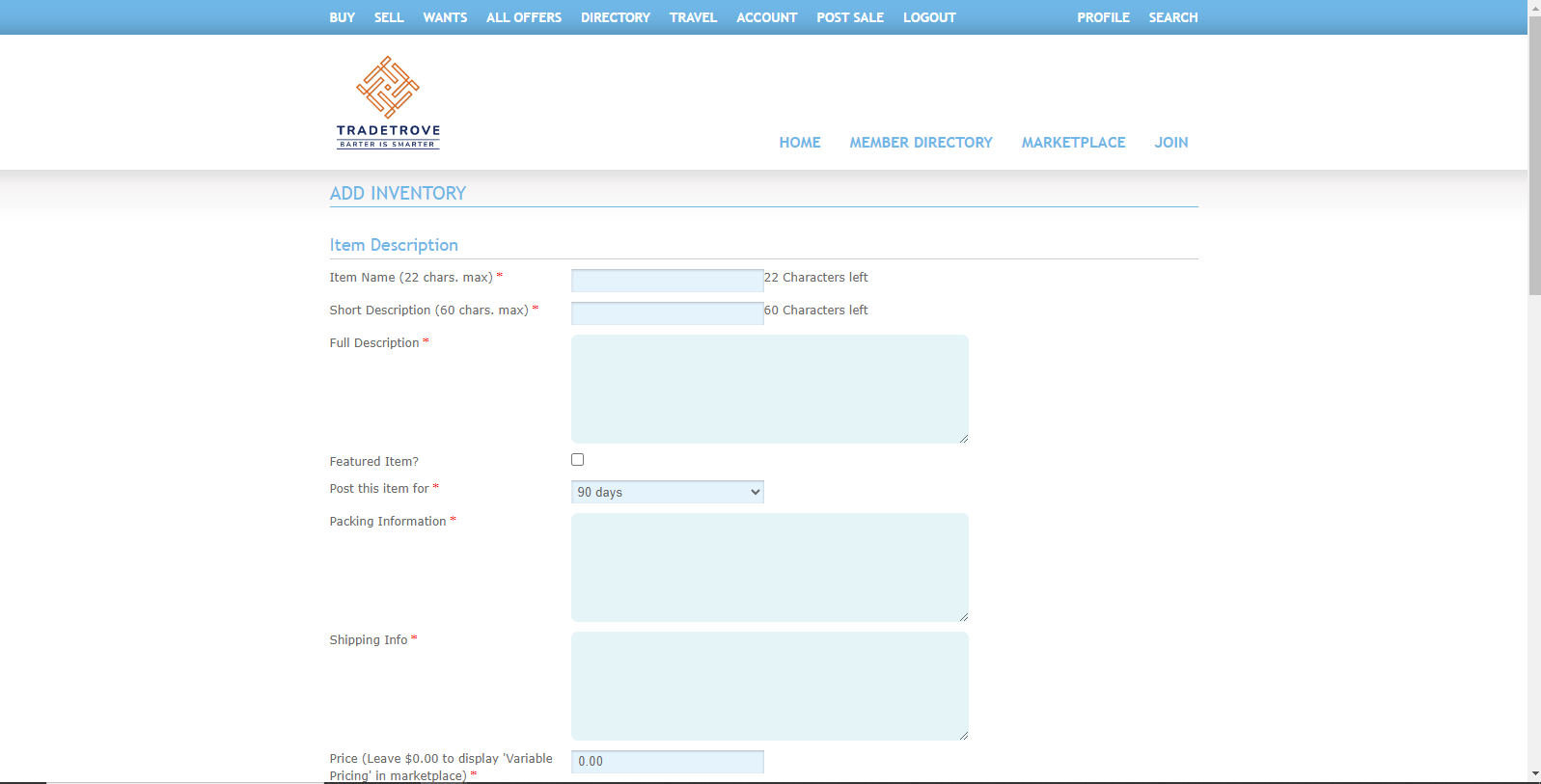
Clicking on the Add Inventory button opens the Add Inventory page where you can add excess inventory items you might want to put up for sale. Any field marked with a red asterisk(*) is required and cannot be left blank.
Item Description
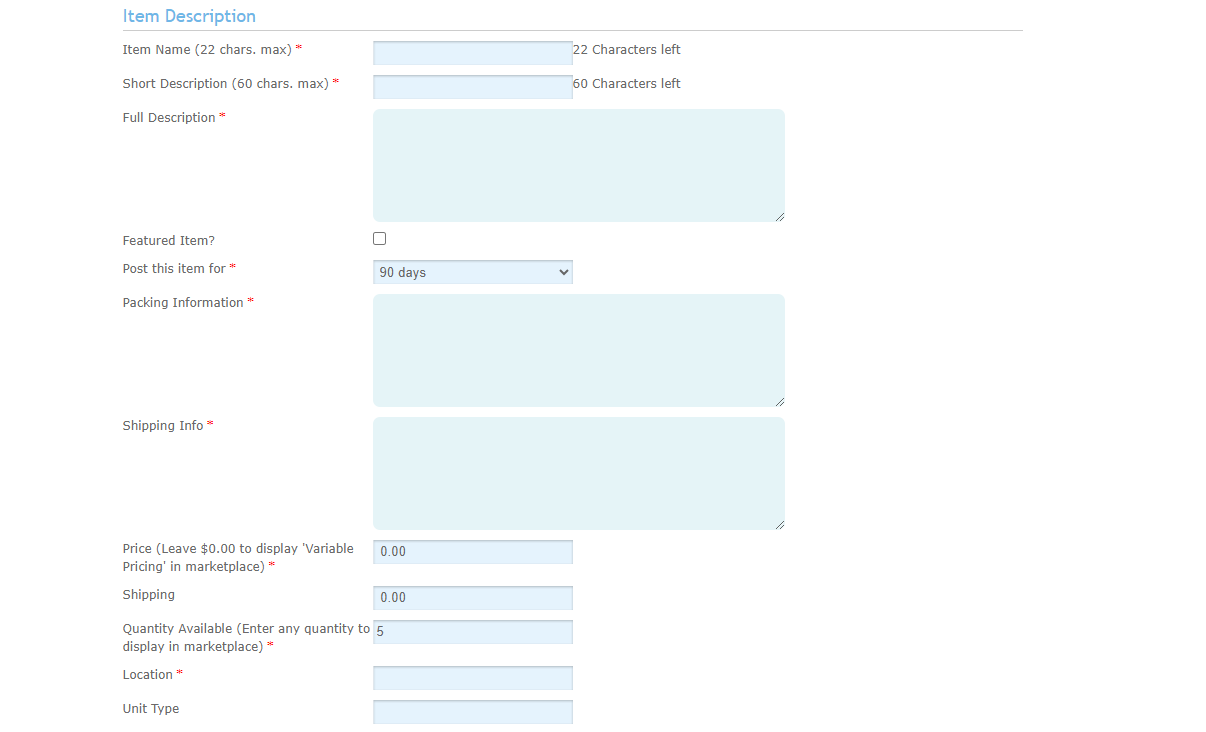
In this section, you should enter information regarding the inventories you add.
- Item name. Add a name for your item. This field is required and cannot be left blank.
- Short Description. Here you should enter a short 60-character summary of what your item is. This field is required and cannot be left blank.
- Full Description. Here you can enter a full description of your item or service. This field is required and cannot be left blank.
- Featured Item (optional). This is a checkbox that if checked will feature your item on Tradetrove’s homepage. Please note that Tradetrove Administrators can change this field and your item might not appear on the featured list. This field is optional and can remain blank.
- Post this item for. Here you should select the duration for which the item will remain listed on the platform. The item will be listed for 90 days by Default. This field is required and cannot be left blank.
- Packing Information. Here you should enter any packing information for the inventory provided. This field is required and cannot be left blank.
- Shipping Info. Here you should enter any shipping information for the inventory provided. This field is required and cannot be left blank.
- Price (Leave $0.00 to display ‘Variable Pricing’ in marketplace). Here you should enter a price for your item or service. The price entered will be in Kenyan Shillings(Ksh). If your item or service has no fixed price, leave it to 0 for Variable Pricing. Any item that is set to Variable Pricing will not be processed immediately. It will instead need to be approved by the seller before it’s completed. Click on this link for more information on variable pricing.
- Shipping (optional). Here you can add any shipping costs. This field is optional and can be left blank.
- Quantity Available. Here you should enter the quantity of the item or service available for trade. This field is required and cannot be left blank.
- Location. Here you should enter your business location. This field is required and cannot be left blank.
- Unit Type (optional). Here you should enter a unit type for your good or service. e.g you can enter 10kg bags if 1 unit is equivalent to 1 10 kg bag. If left empty no units will be included in the price. This field is optional and can be left blank.
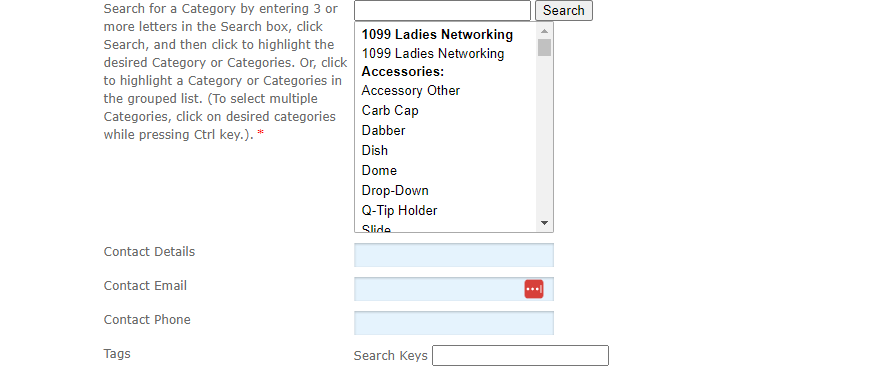
- Category. Here you can classify your inventories into a category. This will enable members to quickly search for inventories by looking for specific categories. This field is required and cannot be left blank.
- Contact Details (optional). Add any contact details for your business. This field is optional and can be left blank.
- Contact Email (optional). Add a contact email for your business. This field is optional and can be left blank.
- Contact Phone (optional). Add a contact phone number for your business. This field is optional and can be left blank.
- Tags (optional). Add tags to enable other members to easily search for your items. This field is optional and can be left blank.
Search Location
In this section, you should detail the location of this offer so that potential buyers can find your inventories using the Marketplace Search. The more fields completed the more your item will display based on search characteristics.
- Country (optional). Enter the country where your business is located. This field is optional and can be left blank.
- State/Province (optional). Enter the province where your business is located. This field is optional and can be left blank.
- City (optional). Enter the city where your business is located. This field is optional and can be left blank.
- Postal code (optional). Enter the postal code where your business is located. This field is optional and can be left blank.
Item Images
In this section, you can upload images of your inventories. This field is optional but you should add at least one image to help members identify your items and services. You can upload up to 6 images per item.
Save changes
Once you have filled in all the sections, click Save Changes to send your item for approval. Once approved your service will be listed for purchase.
Add Real Estate
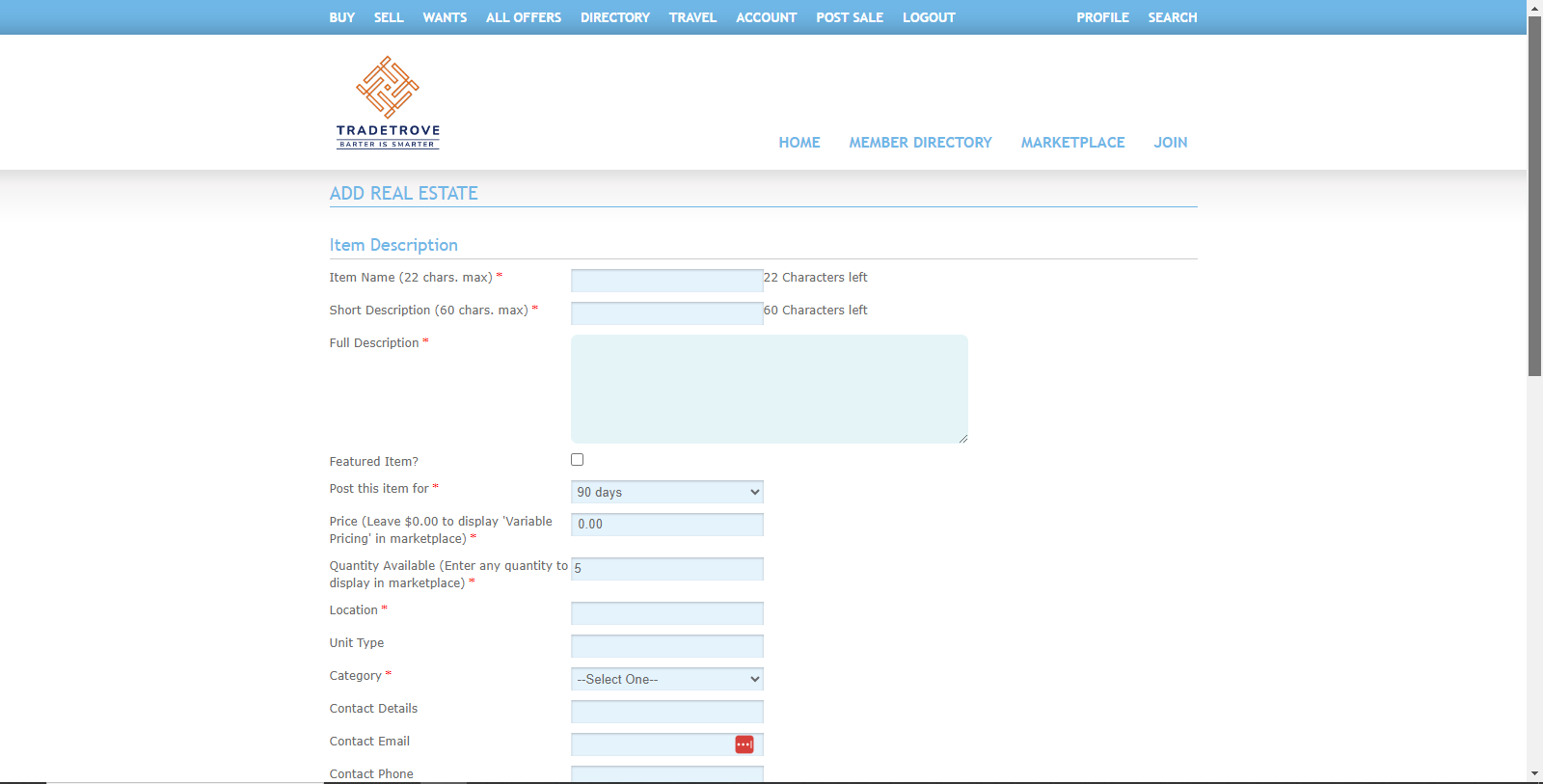
Clicking on the Add Real Estate button opens the Add Real Estate page where you can add an offer to sell homes, buildings or properties that require real estate-specific data fields. Any field marked with a red asterisk(*) is required and cannot be left blank.
Item Description
In this section, you should enter information regarding the real estate you add.
- Item name. Add a name for your item. This field is required and cannot be left blank.
- Short Description. Here you should enter a short 60-character summary of what your item is. This field is required and cannot be left blank.
- Full Description. Here you can enter a full description of your real estate. This field is required and cannot be left blank.
- Featured Item (optional). This is a checkbox that if checked will feature your item on Tradetrove’s homepage. Please note that Tradetrove Administrators can change this field and your item might not appear on the featured list. This field is optional and can remain blank.
- Post this item for. Here you should select the duration for which the item will remain listed on the platform. The item will be listed for 90 days by Default. This field is required and cannot be left blank.
- Price (Leave $0.00 to display ‘Variable Pricing’ in marketplace). Here you should enter a price for your item or service. The price entered will be in Kenyan Shillings(Ksh). If your item or service has no fixed price, leave it to 0 for Variable Pricing. Any item that is set to Variable Pricing will not be processed immediately. It will need to be approved by the seller before it’s completed. Click on this link for more information on variable pricing.
- Quantity Available. Here you should enter the quantity of the item or service available for trade. This field is required and cannot be left blank.
- Location. Here you should enter your real estate location. This field is required and cannot be left blank.
- Unit Type (optional). Here you should enter a unit type for your good or service. e.g you can enter 10kg bags if 1 unit is equivalent to 1 10 kg bag. If left empty no units will be included in the price. This field is optional and can be left blank.
- Category. Here you can classify your inventories into a category. This will enable members to quickly search for inventories by looking for specific categories. This field is required and cannot be left blank.
- Contact Details (optional). Add any contact details for your business. This field is optional and can be left blank.
- Contact Email (optional). Add a contact email for your business. This field is optional and can be left blank.
- Contact Phone (optional). Add a contact phone number for your business. This field is optional and can be left blank.
- Tags (optional). Add tags to enable other members to easily search for your items. This field is optional and can be left blank.
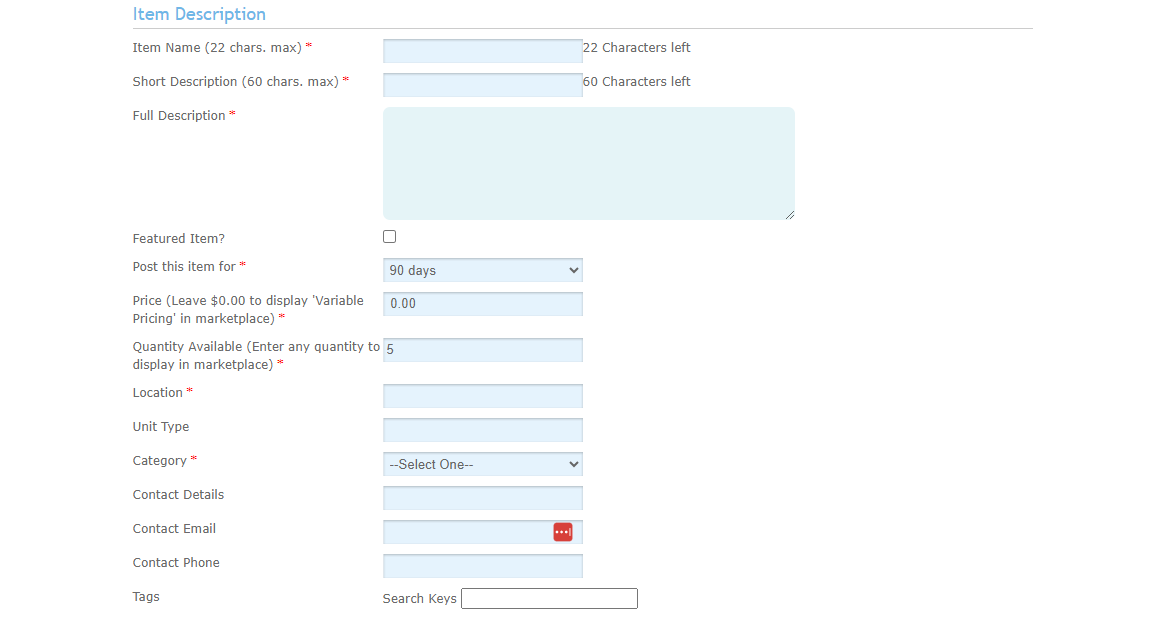
Search Location
In this section, you should detail the location of this offer so that potential buyers can find your inventories using the Marketplace Search. The more fields completed the more your item will display based on search characteristics.
- Country (optional). Enter the country where your business is located. This field is optional and can be left blank.
- State/Province (optional). Enter the province where your business is located. This field is optional and can be left blank.
- City (optional). Enter the city where your business is located. This field is optional and can be left blank.
- Postal code (optional). Enter the postal code where your business is located. This field is optional and can be left blank.
Item Images
In this section, you can upload images of your inventories. This field is optional but you should add at least one image to help members identify your items and services. You can upload up to 6 images per item.
Save changes
Once you have filled in all the sections, click Save Changes to send your item for approval. Once approved your service will be listed for purchase.
Add Restaurant
Clicking on the Add Restaurant button opens the Add Restaurant page where you can add a restaurant. You can also sell your reservations here. Any field marked with a red asterisk(*) is required and cannot be left blank.
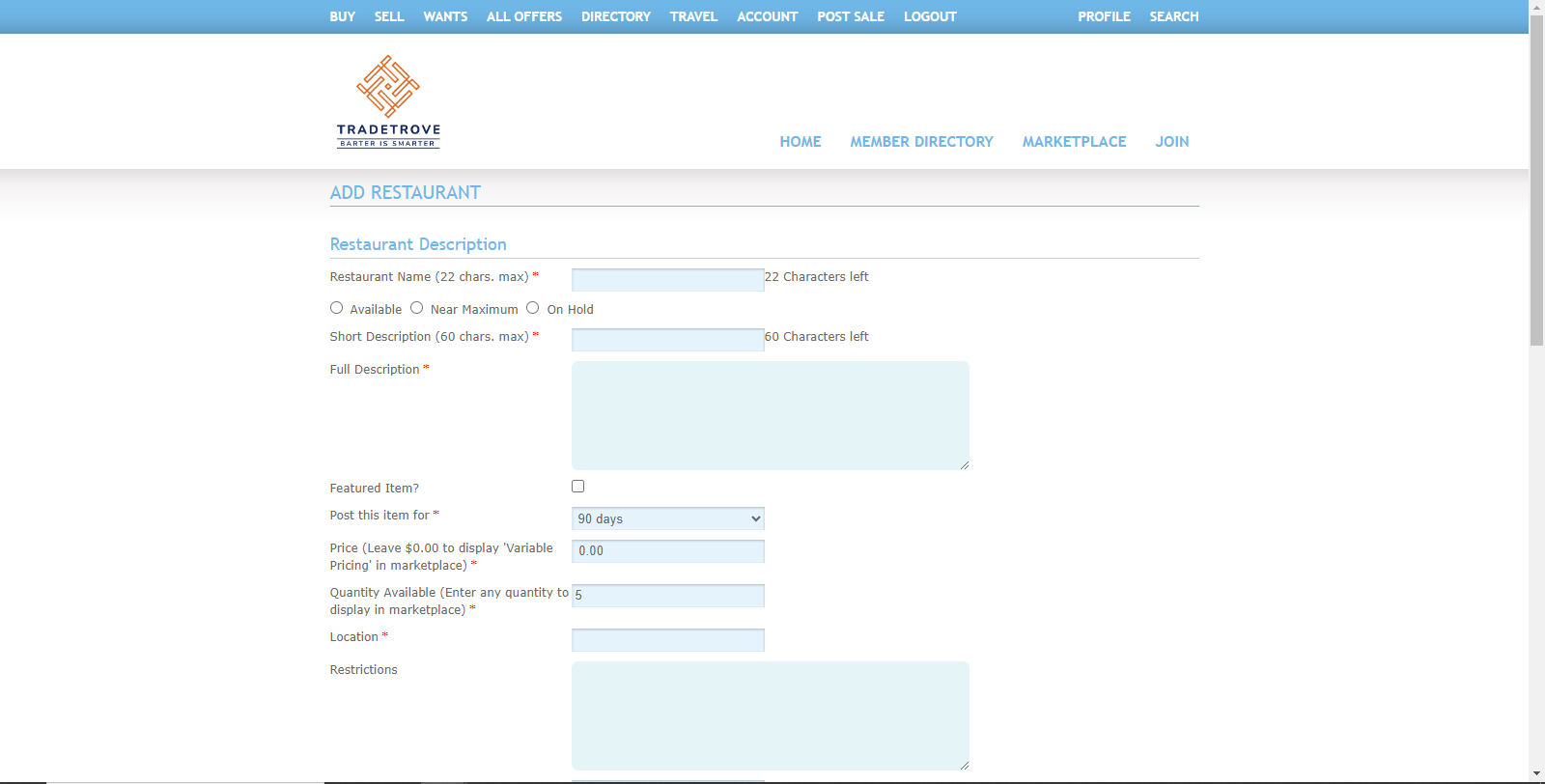
Restaurant Description
In this section, you should enter information regarding the restaurant you add.
- Restaurant name. Add a name for your restaurant. This field is required and cannot be left blank.
- Available, Near maximum or On Hold (Optional). Here you can select the capacity of your restaurant listing. Use Available if there are currently available tables for reservation. Use Near Maximum if there are only a few tables available. Use On Hold if there are no tables available. This field is not required and can be left blank.
- Short Description. Here you should enter a short 60-character summary of what your item is. This field is required and cannot be left blank.
- Full Description. Here you can enter a full description of your real estate. This field is required and cannot be left blank.
- Featured Item (optional). This is a checkbox that if checked will feature your item on Tradetrove’s homepage. Please note that Tradetrove Administrators can change this field and your item might not appear on the featured list. This field is optional and can remain blank.
- Post this item for. Here you should select the duration for which the item will remain listed on the platform. The item will be listed for 90 days by Default. This field is required and cannot be left blank.
- Price (Leave $0.00 to display ‘Variable Pricing’ in marketplace). Here you should enter a price for your item or service. The price entered will be in Kenyan Shillings(Ksh). If your item or service has no fixed price, leave it to 0 for Variable Pricing. Any item that is set to Variable Pricing will not be processed immediately. It will need to be approved by the seller before it’s completed. Click on this link for more information on variable pricing.
- Quantity Available. Here you should enter the quantity of the item or service available for trade. This field is required and cannot be left blank.
- Location. Here you should enter your restaurant location. This field is required and cannot be left blank.
- Unit Type (optional). Here you should enter a unit type for your good or service. e.g you can enter 10kg bags if 1 unit is equivalent to 1 10 kg bag. If left empty no units will be included in the price. This field is optional and can be left blank.
- Category. Here you can classify your inventories into a category. This will enable members to quickly search for inventories by looking for specific categories. This field is required and cannot be left blank.
- Contact Details (optional). Add any contact details for your business. This field is optional and can be left blank.
- Contact Email (optional). Add a contact email for your business. This field is optional and can be left blank.
- Contact Phone (optional). Add a contact phone number for your business. This field is optional and can be left blank.
- Tags (optional). Add tags to enable other members to easily search for your items. This field is optional and can be left blank.
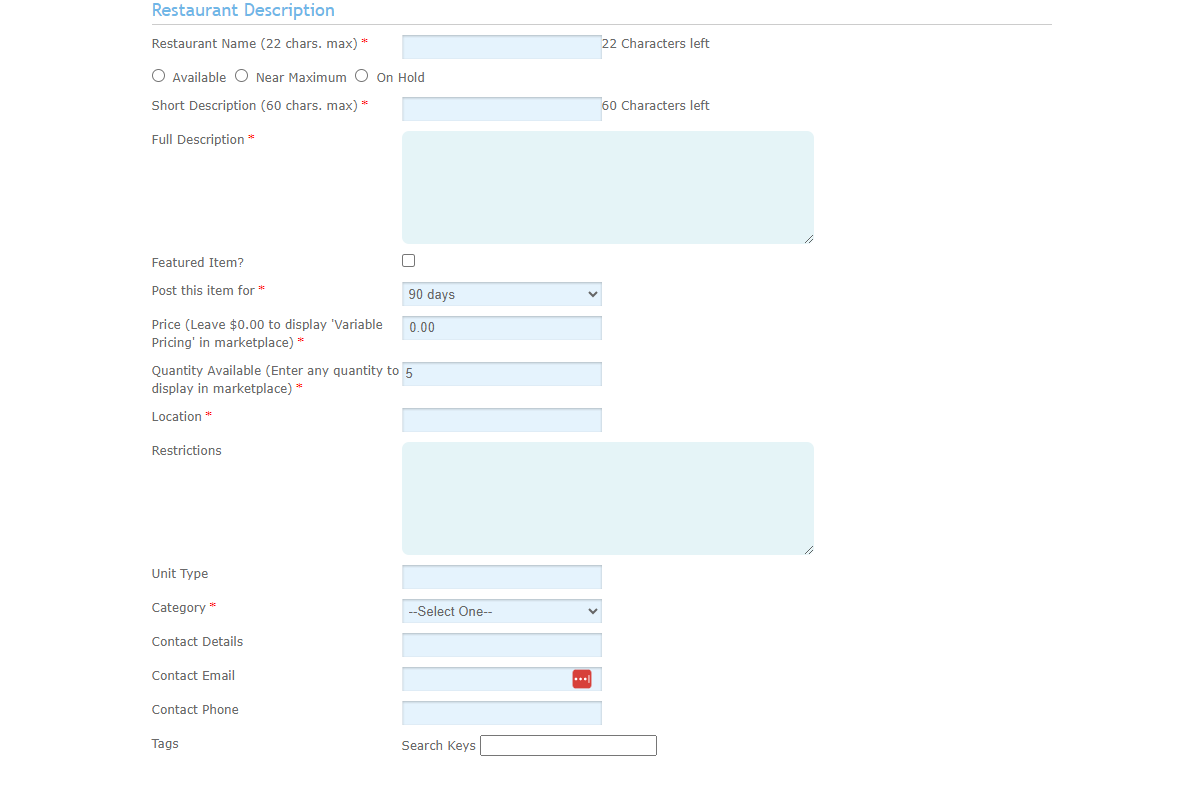
Search Location
In this section, you should detail the location of this offer so that potential buyers can find your inventories using the Marketplace Search. The more fields completed the more your item will display based on search characteristics.
- Country (optional). Enter the country where your business is located. This field is optional and can be left blank.
- State/Province (optional). Enter the province where your business is located. This field is optional and can be left blank.
- City (optional). Enter the city where your business is located. This field is optional and can be left blank.
- Postal code (optional). Enter the postal code where your business is located. This field is optional and can be left blank.
Item Images
In this section, you can upload images of your inventories. This field is optional but you should add at least one image to help members identify your items and services. You can upload up to 6 images per item.
Save changes
Once you have filled in all the sections, click Save Changes to send your item for approval. Once approved your service will be listed for purchase.