Welcome to Tradetrove Digital Limited. In this post, you will learn how to search for an item or service. Head over to tradetrove.vbarter.com to begin or click the button below.
1. Visit tradetrove.vbarter.com
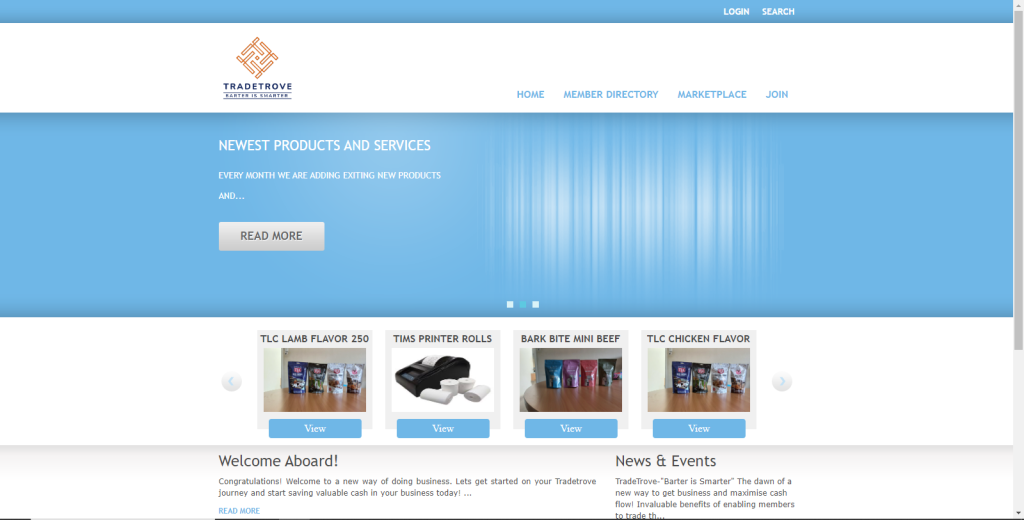
Head over to the link above. Once your page loads successfully, you should see a page resembling the image below.
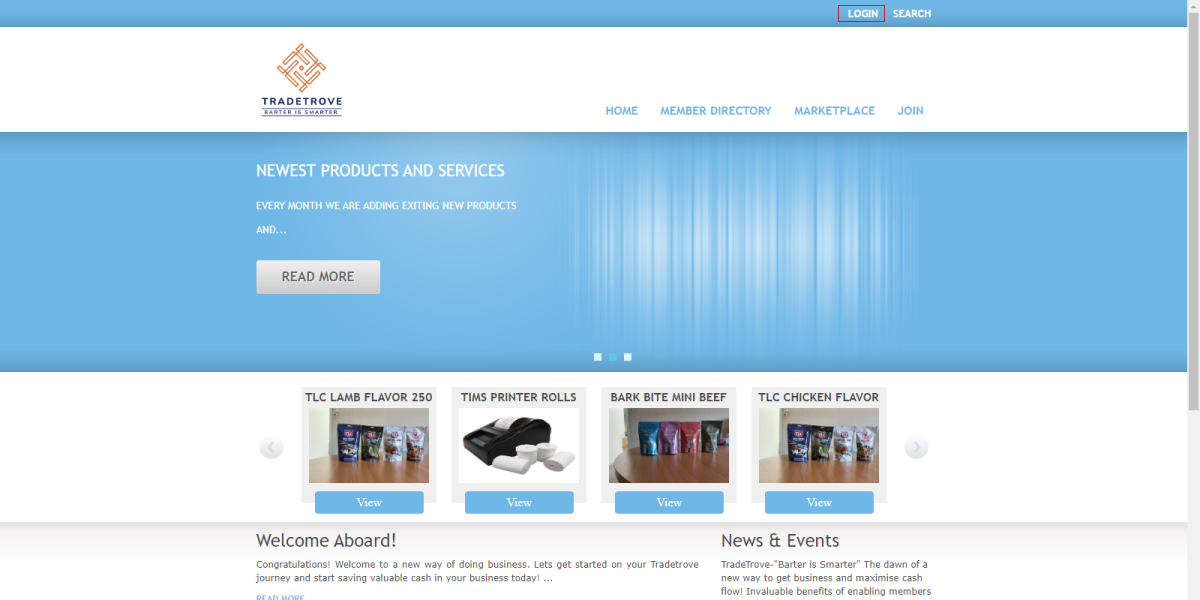
2. Login
Click the login button. If you need any help logging in you can read this blog post.
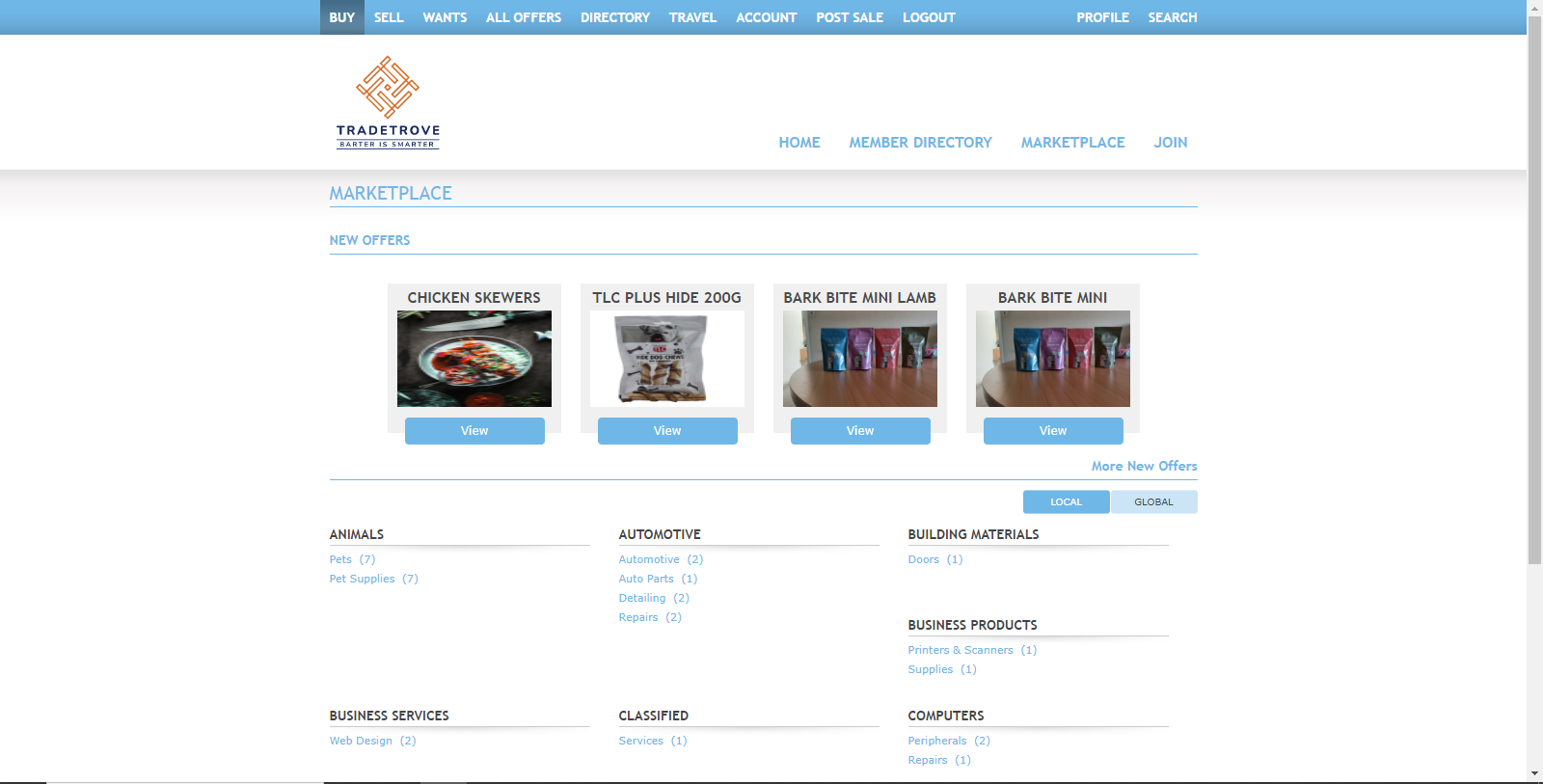
Once logged in you will be redirected to the market place as shown below.
3. Marketplace Breakdown
The marketplace holds all added items and services. Here you can search and access all the items offered on Tradetrove. You can reach this page by clicking the BUY button on the top navigation or clicking the MARKETPLACE button on the bottom navigation.
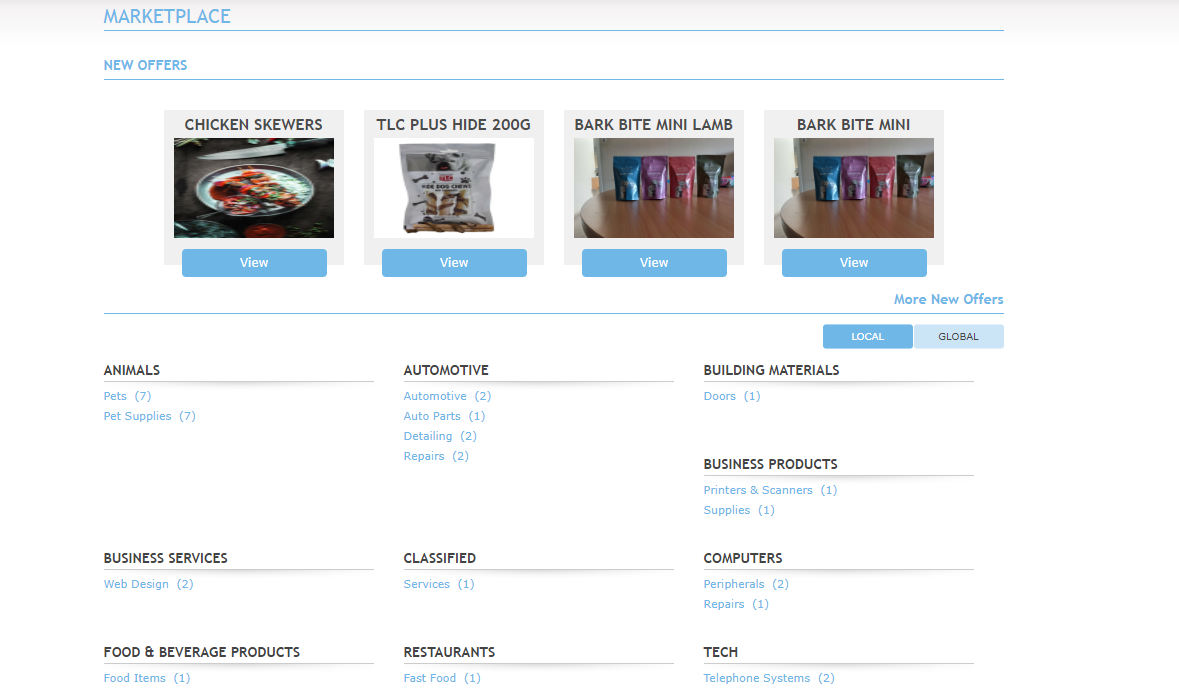
Below I will break down the features of the marketplace page:
- New offers. This section will always display the latest items and services. The newest four items will be displayed from newer to older.
- More New Offers. This is a link that directs you to the catalogue page. The catalogue page displays all the items and services.
- Local and Global Buttons. These buttons switch between the range of categories and member items that are displayed. The Local button displays only categories within the country where Tradetrove is located. In this case, it will display only categories and member items located in Kenya. The Global Button displays categories and member items of members who exist outside the country or in other related barter exchanges.
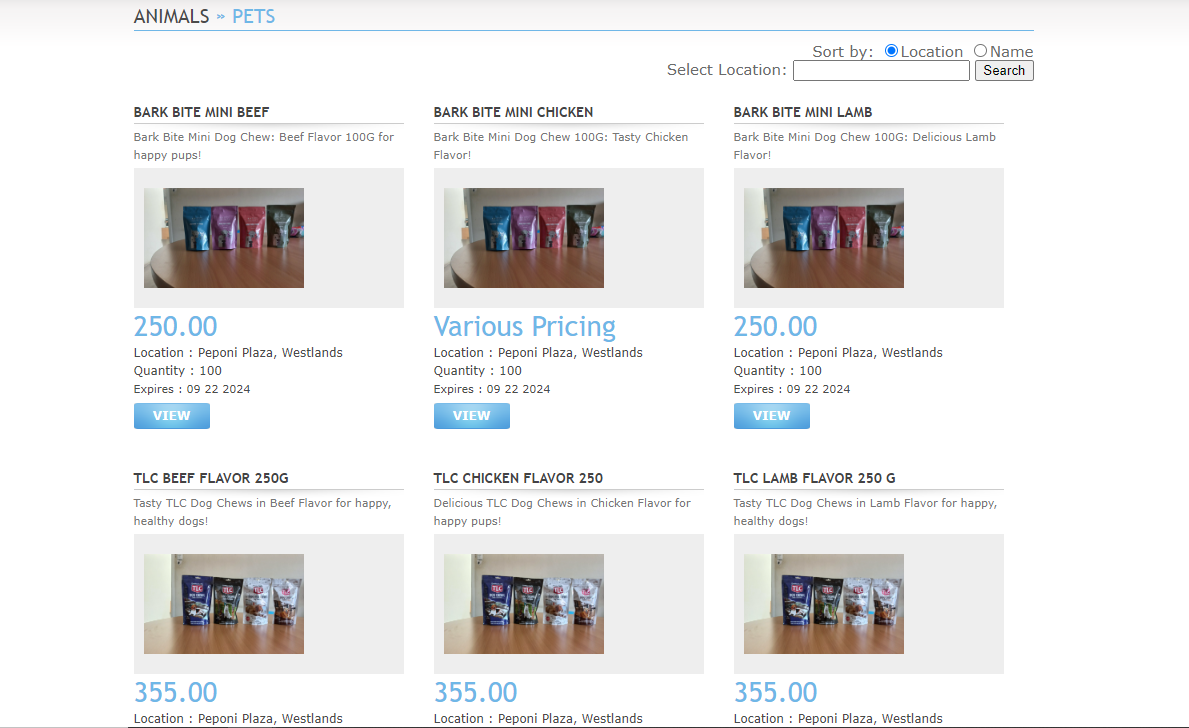
- Categories section. This section displays all categories of items. This section is used to easily search for items or services in specific categories. For example, under the ANIMALS category, we have the Pets and Pet Supplies sub-categories. Clicking on either link will only display items and services that belong to that category. Below is an image of what it looks like when you click a subcategory link.
4. What to do next
Now that you are familiar with searching for items you can go ahead and try to purchase an item. Click on the following link to learn how to buy an item blog post.