
Welcome to Tradetrove Digital Limited. In this post, you will learn how to register for Tradetrove. Head over to tradetrove.vbarter.com to begin or click the button below.
1. Visit tradetrove.vbarter.com
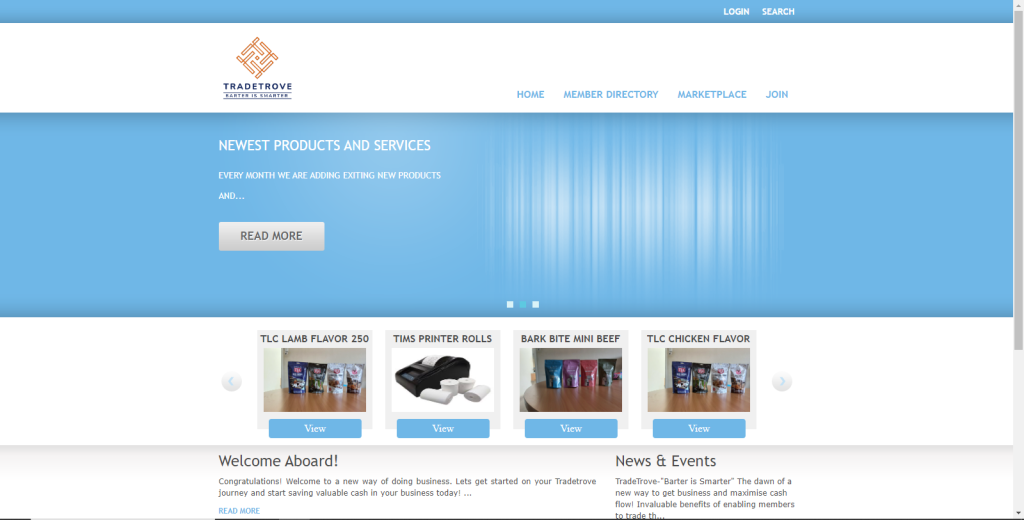
Head over to the link above. Once your page loads successfully, you should see a page resembling the image below.
2. Login
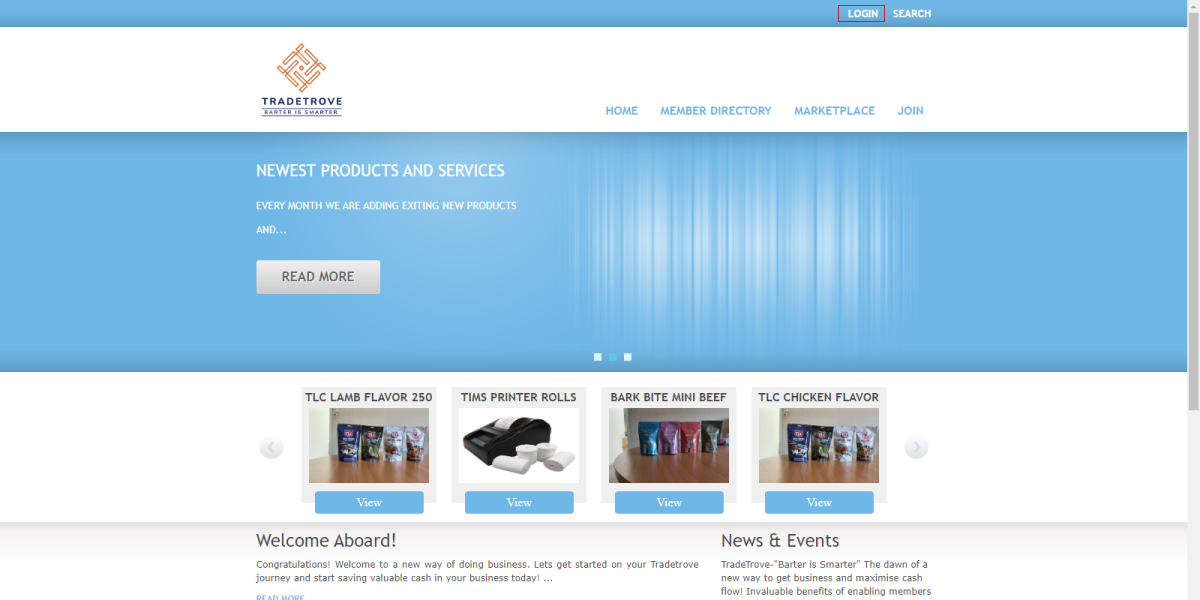
Click the login button. If you need any help logging in you can read this blog post.
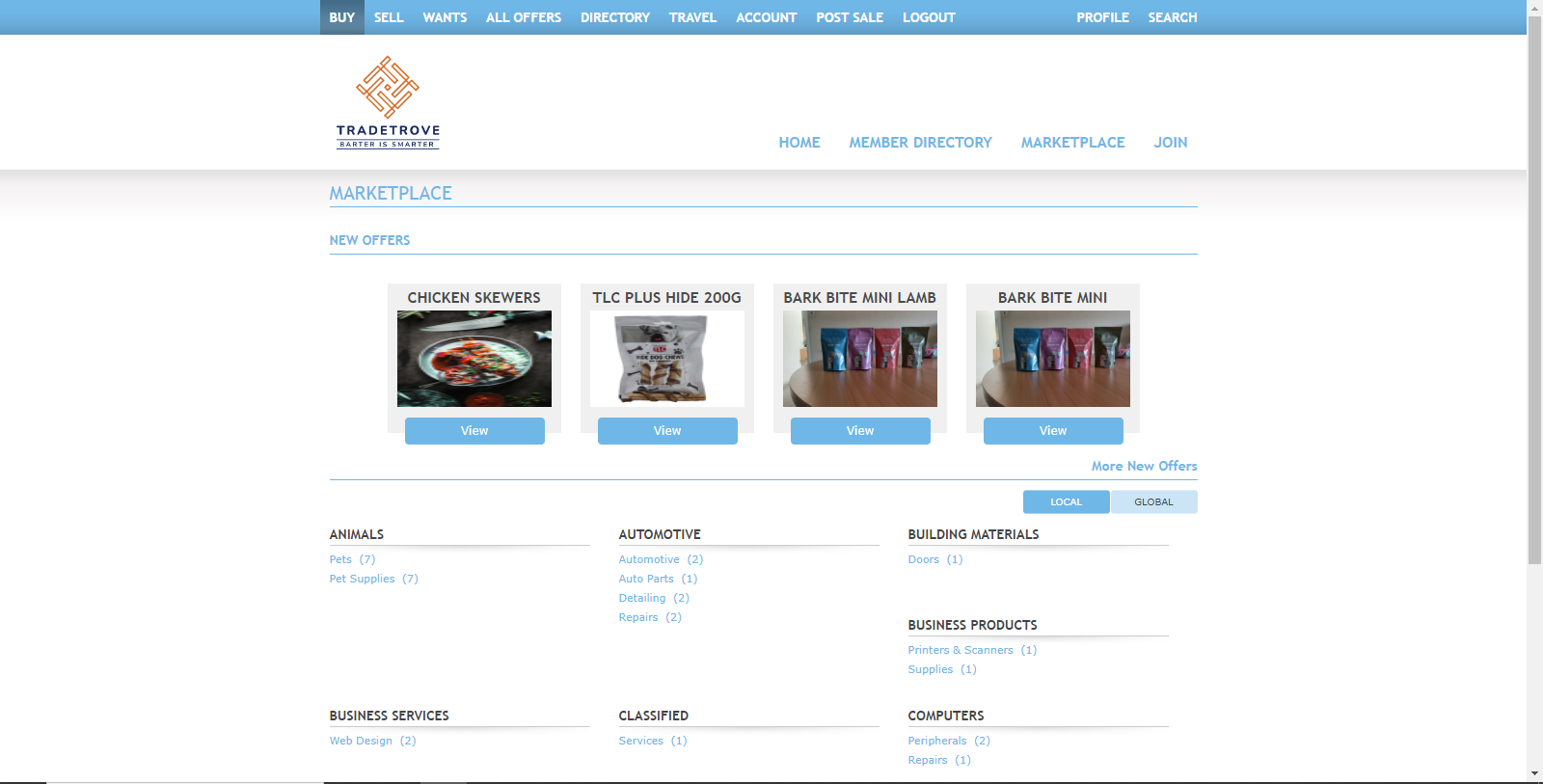
Once logged in you will be redirected to the market place as shown below.
3. Navigate to the BUY page
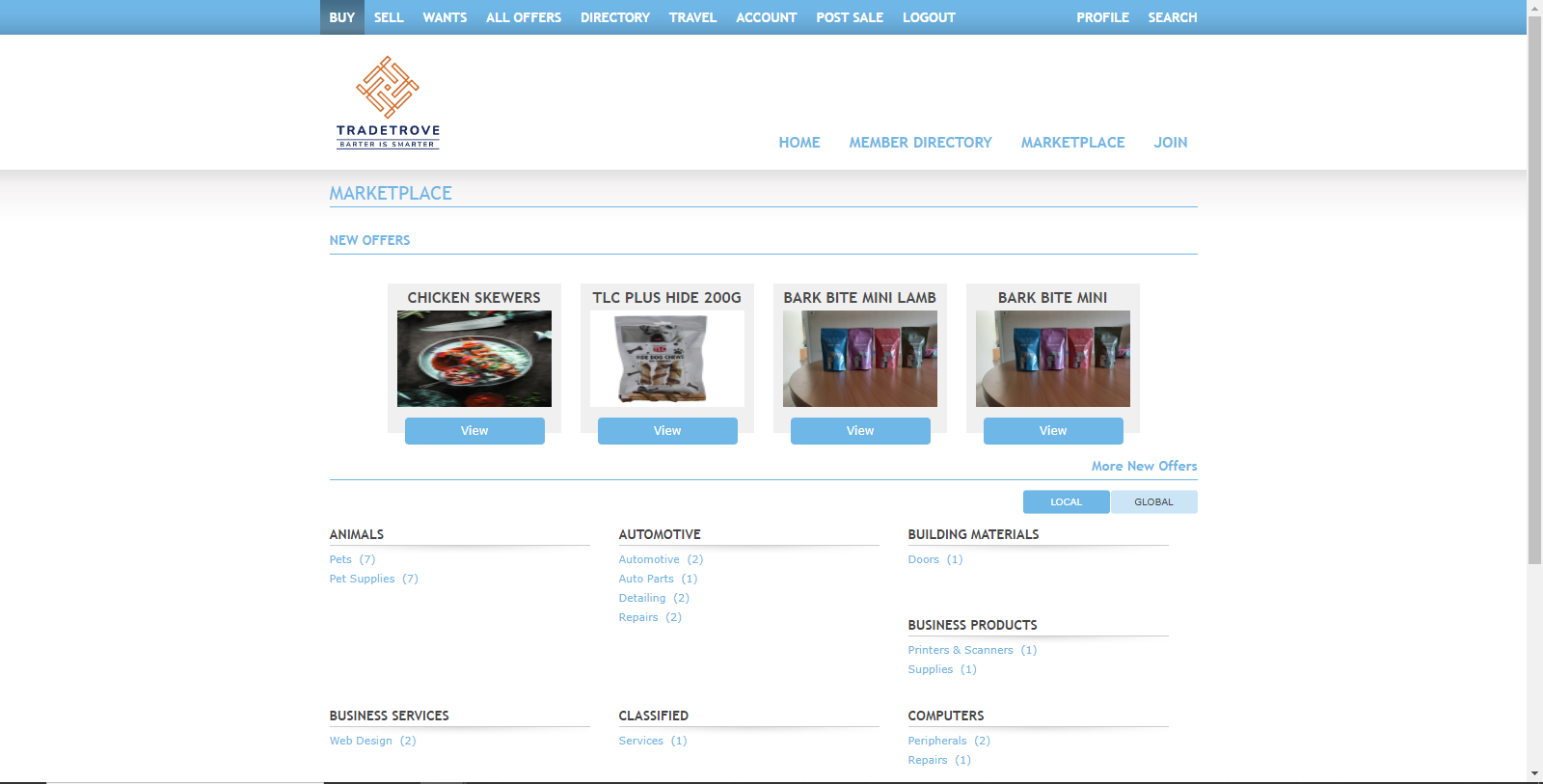
Click on the BUY button to access the marketplace. It should be the first item on the navigation bar at the top of the page.
4. Find an item or service
Find an Item or service you would like to buy. We have create an extensive tutorial how to search for item or services. If you need a refresher please click on this link. Once you find an item click on VIEW to open the item page as shown below.
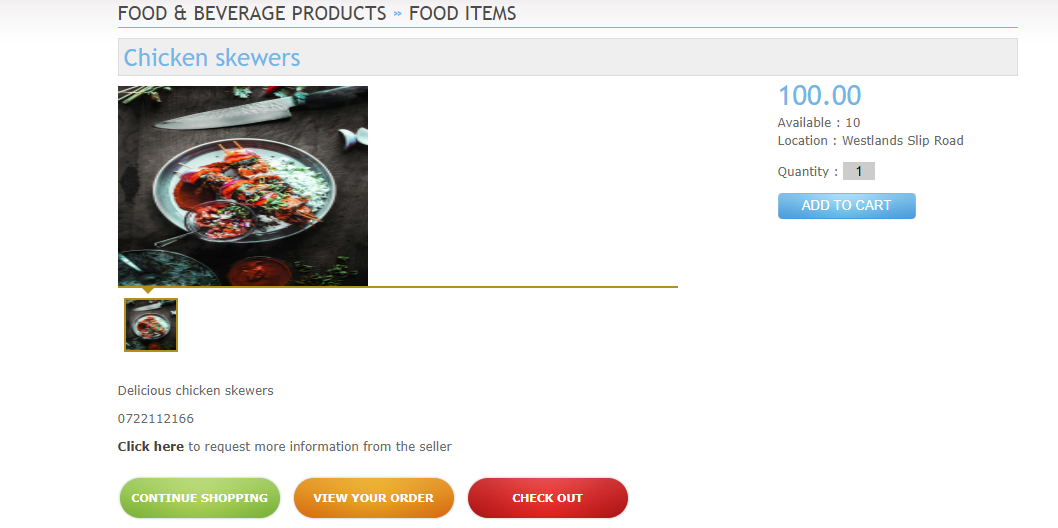
Item page breakdown
Below we will break down the item page and all the items and features:
Item Information
This page shows a lot of information on the item.
- Item Category and subcategory. The item category and subcategory are displayed at the top on a breadcrumb menu. In this case, the category of the item is Food & beverage products and the subcategory is Food Items.
- Item name. The item name is shown below the categories. In this case, the item is Chicken Skewers.
- Item Images. This section shows images of the items and services.
- Item Description. The section below the images displays the item description. This is a textual explanation of the item or service on sale.
- Business Contact Details. The seller’s contact details are below the description.
- Price. The price of each unit is displayed to the right of the images section. The currency of the price is denominated in Kenyan Shillings. The price will also display the denominations of each item unit i.e. the price will display 100 per 10 kg bag. The price can also show Various Pricing for items and services that do not have a defined price. We will talk about how to buy items marked by various pricing in another tutorial.
- Available. This section shows the quantity available on sale.
- Location. This shows the business location.
- Quantity. Here you can enter a value for the quantity of the item you would like to buy. The quantity is set to 1 by default.
- Add to cart. This button lets you add the item with the set quantity to the shopping cart.
- Request more information. Clicking on this link opens a new page where you can send a message to the seller.
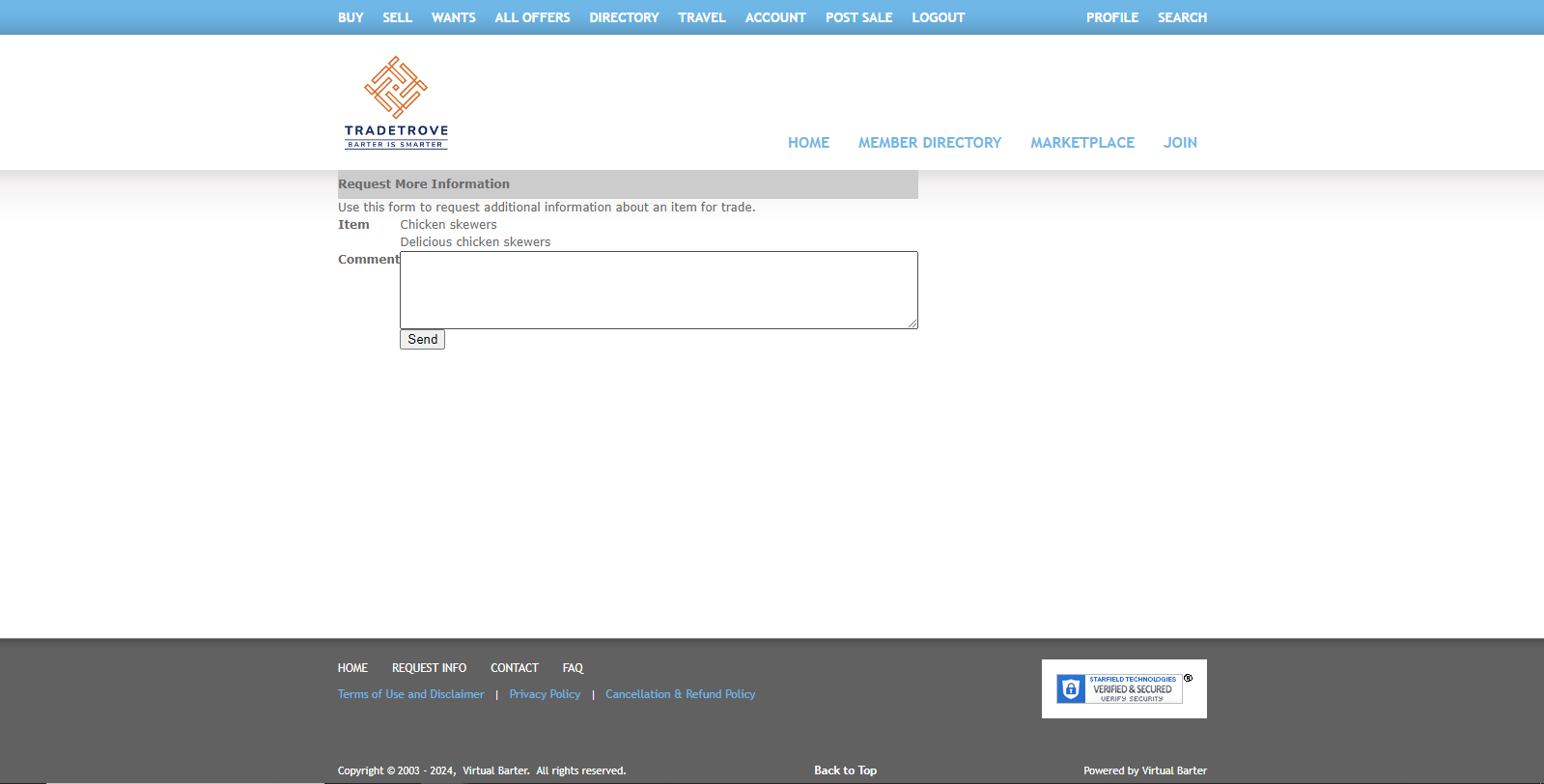
Checkout Buttons
- Continue shopping. The continue shopping button sends you back to the marketplace where you can select more items.
- View your order. This button lets you view your shopping cart.
- Check out. This button sends you to the shopping cart page where you can verify your shopping cart and adjust the quantities of the items added.
5. The shopping cart
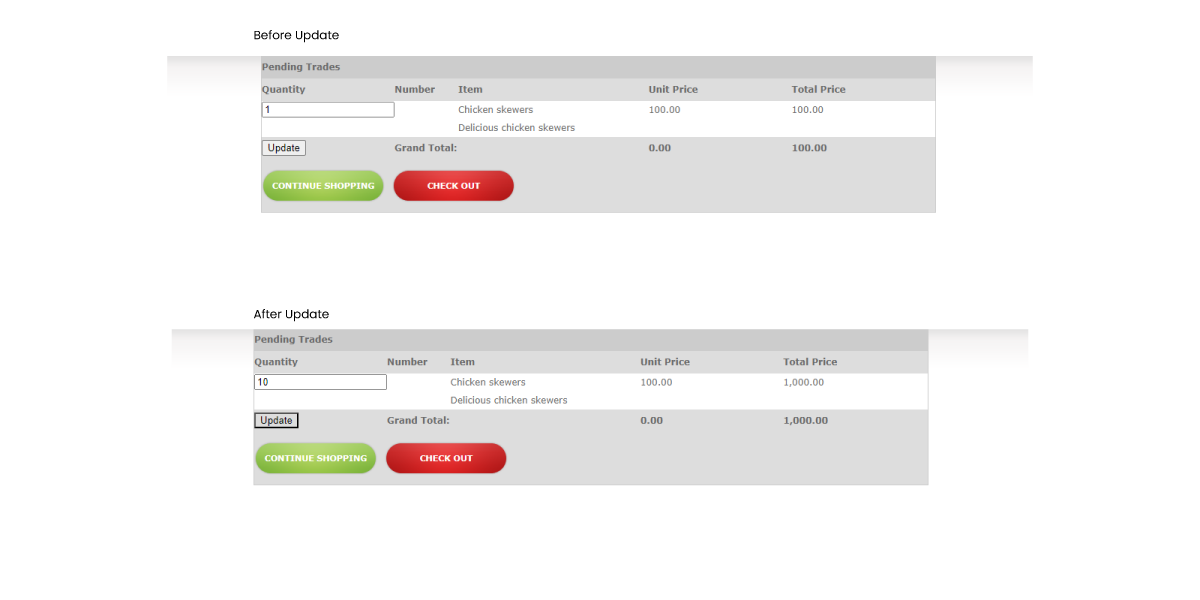
The shopping cart page lets you confirm your shopping cart before you complete your trade. The page lists all pending trades as well as an editable quantity. You can change the quantity of any of the items added. Click the UPDATE button on the bottom to update the quantities. Set the quantity to 0 to remove the item from the shopping cart.
6. The checkout page
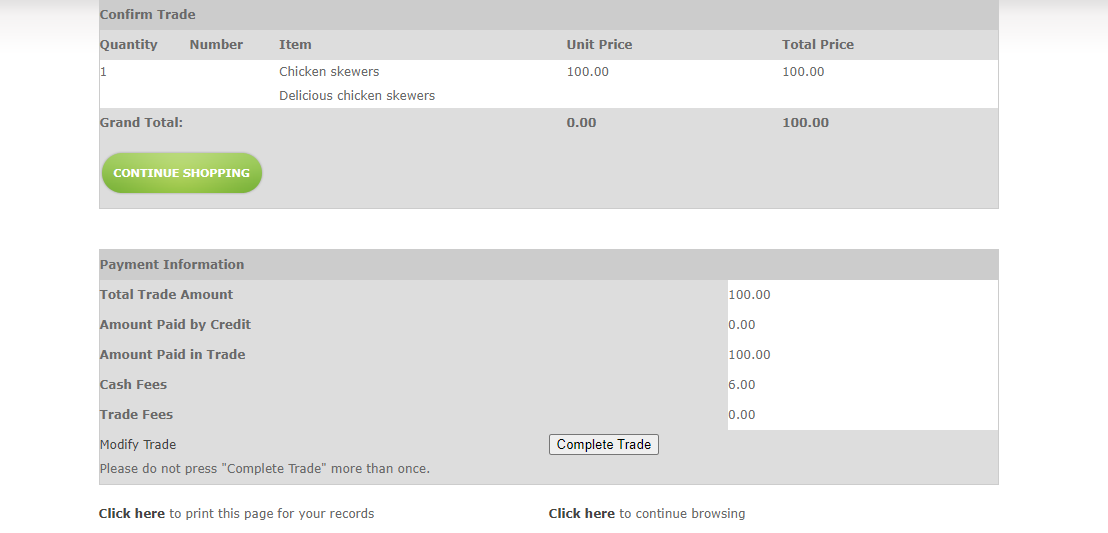
The checkout page lets you confirm your items as well as the costs associated with the transaction. I’ll break down the content of the page below.
- Shopping Cart Section. The top section of the page is the shopping cart. This lists all the items added to the cart as well as their quantities and the total of the cart.
- Continue Shopping Button. This button sends you back to the marketplace where you can add additional items.
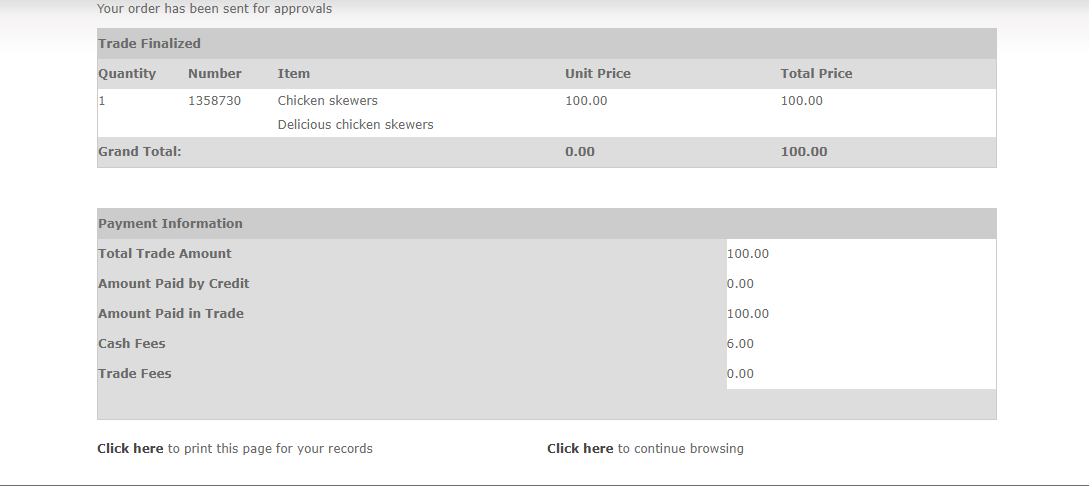
- Payment Information. The payment information section shows the breakdown of the fees that would be charged for completing the transaction.
- Total Trade Amount. This is the cost of the total number of items in the shopping cart.
- Amount paid by credit. This is the amount that will be paid in credit.
- Amount paid in trade. This is the amount of the cart that will spent in trade.
- Cash Fees. This is the cash fee for completing the transaction. The cash fee is 6% of the total price.
- Trade fee. This is a trade fee for completing the transaction. Tradetrove only charges a cash fee and not a trade fee.
- Modify Trade. This section has the Complete Trade button. this button should only be clicked once you have confirmed that all the items and calculations are correct. This button completes the trade and sends your order to the seller for approval.
Once the trade has been completed, you will be redirected to a confirmation page such as the one displayed below.
7. The approval process for a purchase
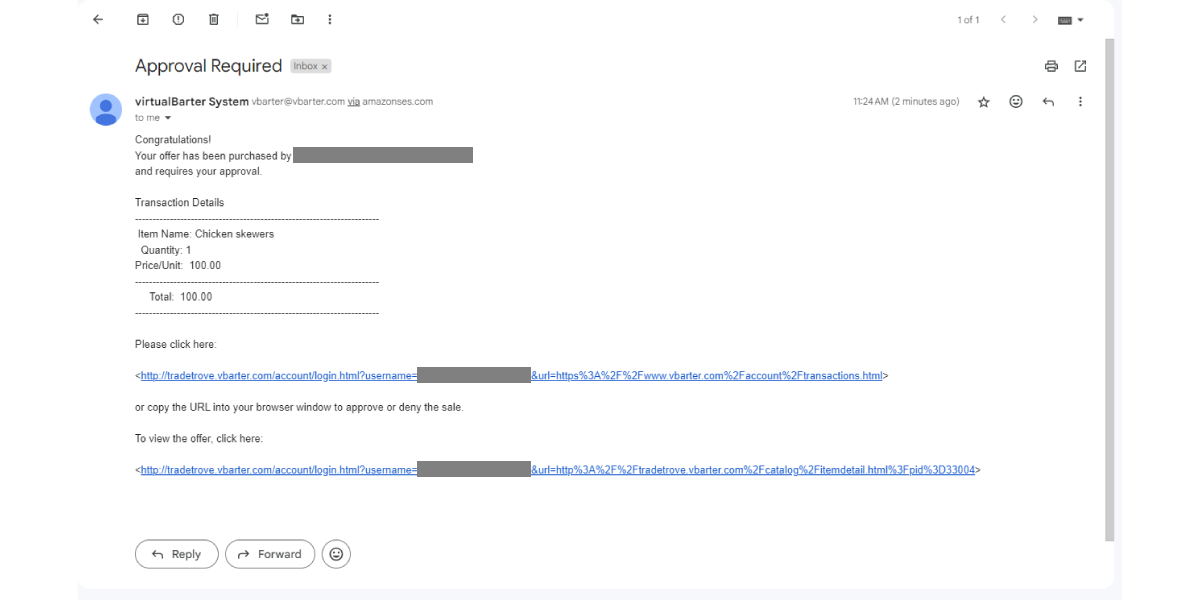
When a purchase is completed the seller will be sent an email with information on the purchase. He/she can then approve or deny the purchase. If approved, the cost of the item or service in trade credits will be automatically deducted from your account at the same time the seller’s account will be credited with the same amount of trade credit. The seller will then contact you to set up delivery or collection of the item or service.
8. What to do next
Once you have completed a purchase the buyer receives an email with the order details as well as a link to your order status. Here you can track your purchase. You can also view the seller’s details and get in touch with the seller to set up the delivery or collection of the item or service.